
Asabeneh/30-Days-Of-JavaScript
30 days of JavaScript programming challenge is a step-by-step guide to learn JavaScript programming language in 30 days. This challenge may take more than 100 days, please just follow your own pace. These videos may help too: https://www.youtube.com/channel/UC7PNRuno1rzYPb1xLa4yktw
Build with Backblaze B2
SDKs, agent skills, IDE extensions, and reference pipelines from Backblaze Labs. All open source.
Loading star history...
Use Cases & Benefits
- Provides a comprehensive 30-day step-by-step JavaScript programming challenge for learners at all levels.
- Offers a structured, paced learning path with practical exercises and mini projects to build real-world JavaScript skills.
- Use for beginners seeking a guided introduction to JavaScript fundamentals and programming concepts.
- Use for intermediate developers wanting to reinforce and expand JavaScript knowledge through daily challenges.
- Ideal for self-learners aiming to build interactive web projects and understand modern JavaScript features.
About 30-Days-Of-JavaScript
30 Days Of JavaScript
🧡🧡🧡 HAPPY CODING 🧡🧡🧡

30 Days Of JavaScript: Introduction


Author:
Asabeneh Yetayeh
January, 2020
🇬🇧 English 🇪🇸 Spanish 🇮🇹 Italian 🇷🇺 Russian 🇹🇷 Turkish 🇦🇿 Azerbaijan 🇰🇷 Korean 🇻🇳 Vietnamese 🇵🇱 Polish 🇧🇷 Portuguese
- 30 Days Of JavaScript
- 📔 Day 1
- 💻 Day 1: Exercises
📔 Day 1
Introduction
Congratulations on deciding to participate in 30 days of JavaScript programming challenge. In this challenge, you will learn everything you need to be a JavaScript programmer, and in general, the whole concept of programming. In the end of the challenge, you will get a 30DaysOfJavaScript programming challenge completion certificate. In case you need help or if you would like to help others you may join the dedicated telegram group.
A 30DaysOfJavaScript challenge is a guide for both beginners and advanced JavaScript developers. Welcome to JavaScript. JavaScript is the language of the web. I enjoy using and teaching JavaScript and I hope you will do so too.
In this step by step JavaScript challenge, you will learn JavaScript, the most popular programming language in the history of mankind. JavaScript is used to add interactivity to websites, to develop mobile apps, desktop applications, games and nowadays JavaScript can be used for server-side programming, machine learning and AI.
JavaScript (JS) has increased in popularity in recent years and has been the leading programming language for last ten years and is the most used programming language on GitHub.
This challenge is easy to read, written in conversational English, engaging, motivating and at the same time, it is very demanding. You need to allocate much time to finish this challenge. If you are a visual learner, you may get the video lesson on Washera YouTube channel. Subscribe the channel, comment and ask questions on YouTube vides and be proactive, the author will eventually notice you.
The author likes to hear your opinion about the challenge, share the author by expressing your thoughts about the 30DaysOfJavaScript challenge. You can leave your testimonial on this link
Requirements
No prior knowledge of programming is required to follow this challenge. You need only:
- Motivation
- A computer
- Internet
- A browser
- A code editor
Setup
I believe you have the motivation and a strong desire to be a developer, a computer and Internet. If you have those, then you have everything to get started.
Install Node.js
You may not need Node.js right now but you may need it for later. Install node.js.
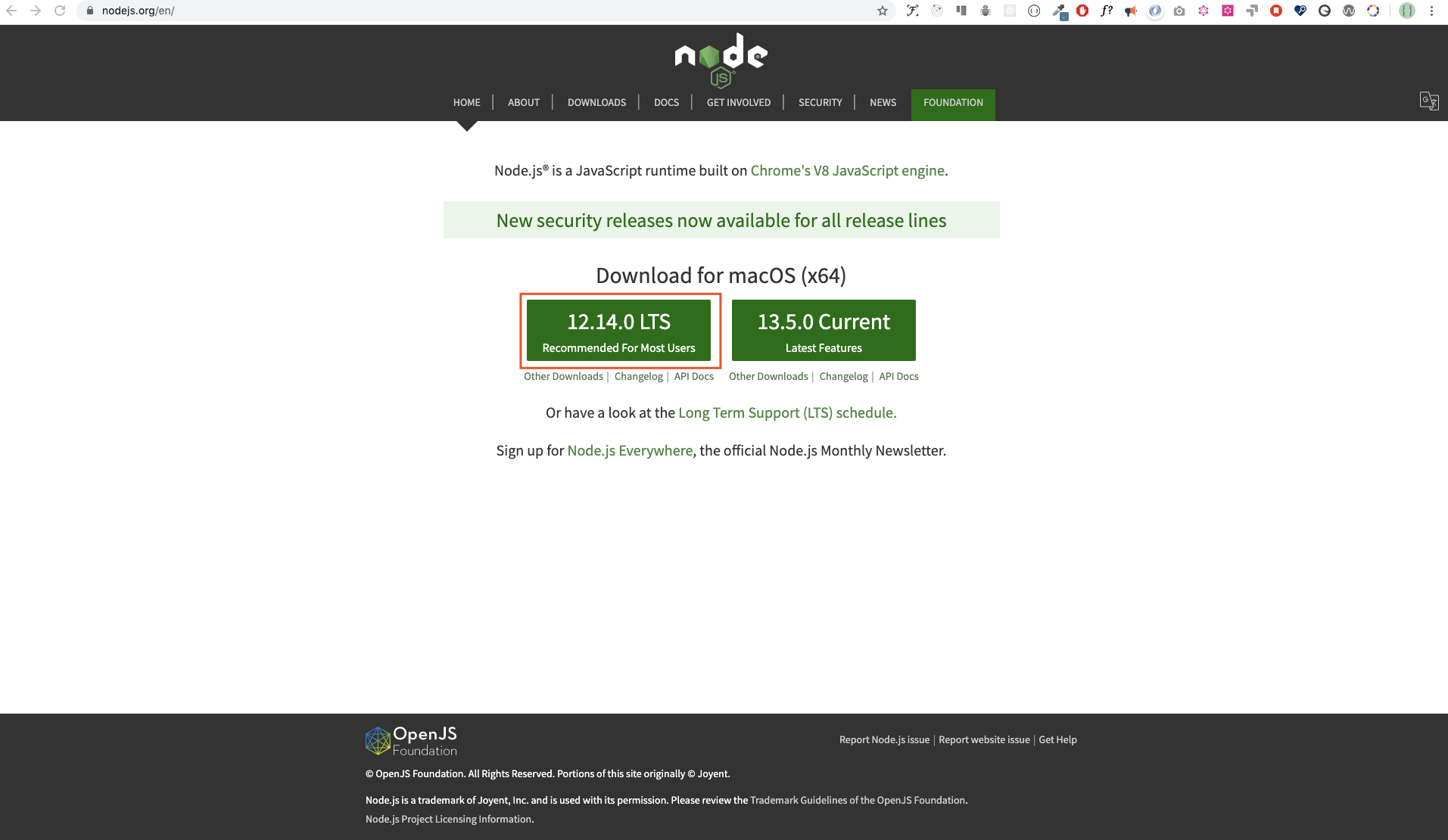
After downloading double click and install
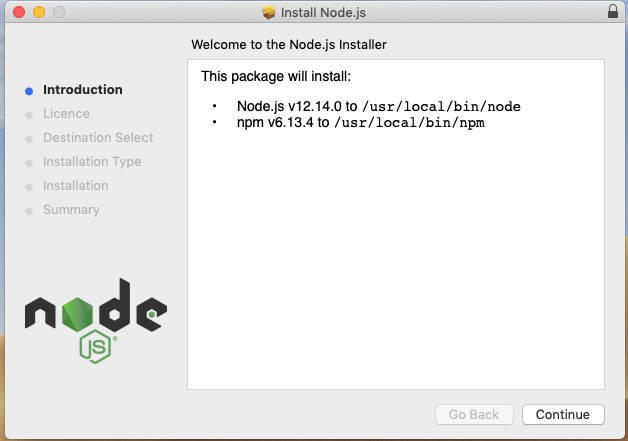
We can check if node is installed on our local machine by opening our device terminal or command prompt.
asabeneh $ node -v
v12.14.0
When making this tutorial I was using Node version 12.14.0, but now the recommended version of Node.js for download is v14.17.6, by the time you use this material you may have a higher Node.js version.
Browser
There are many browsers out there. However, I strongly recommend Google Chrome.
Installing Google Chrome
Install Google Chrome if you do not have one yet. We can write small JavaScript code on the browser console, but we do not use the browser console to develop applications.
Opening Google Chrome Console
You can open Google Chrome console either by clicking three dots at the top right corner of the browser, selecting More tools -> Developer tools or using a keyboard shortcut. I prefer using shortcuts.
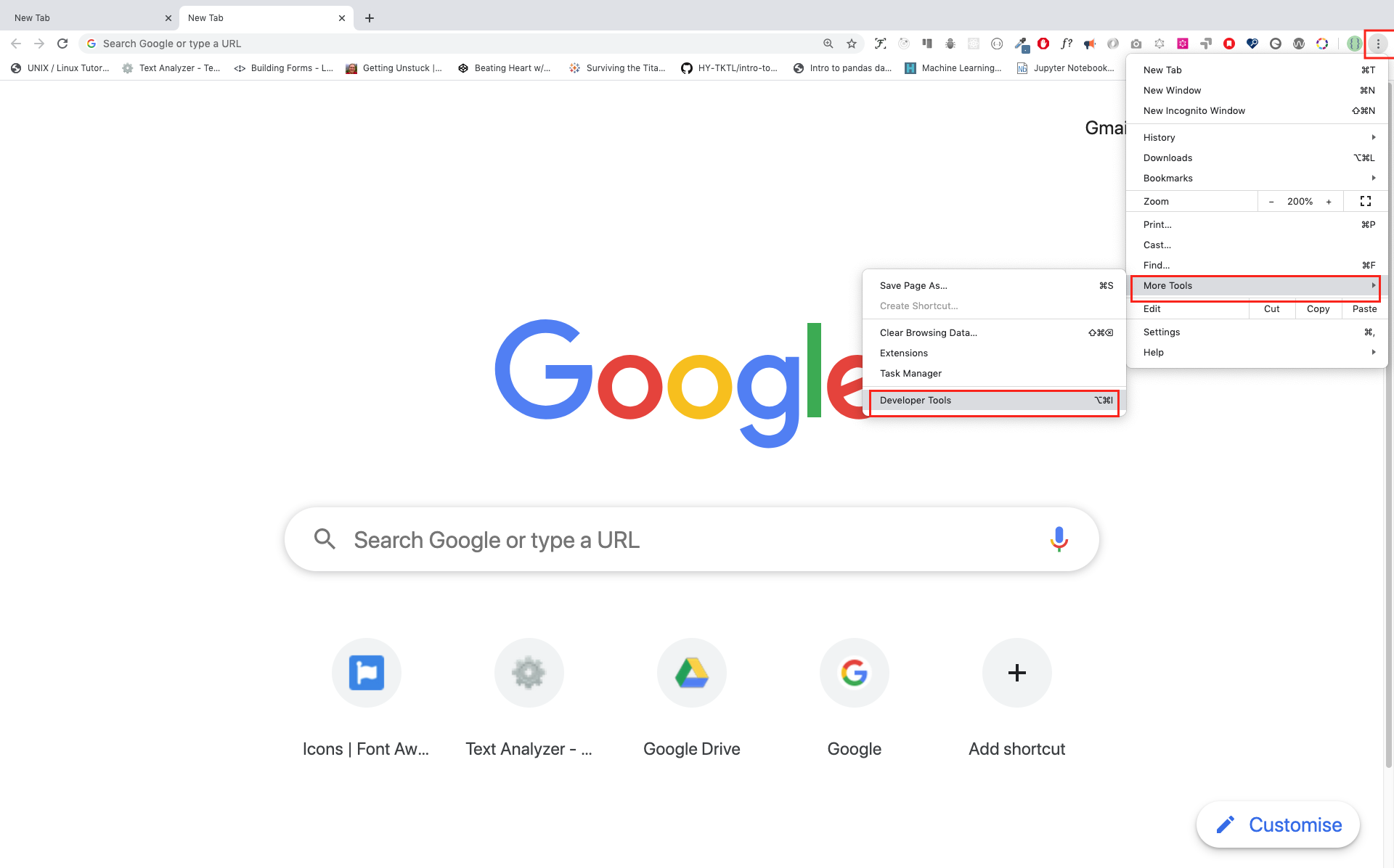
To open the Chrome console using a keyboard shortcut.
Mac
Command+Option+J

Windows/Linux:
Ctl+Shift+J
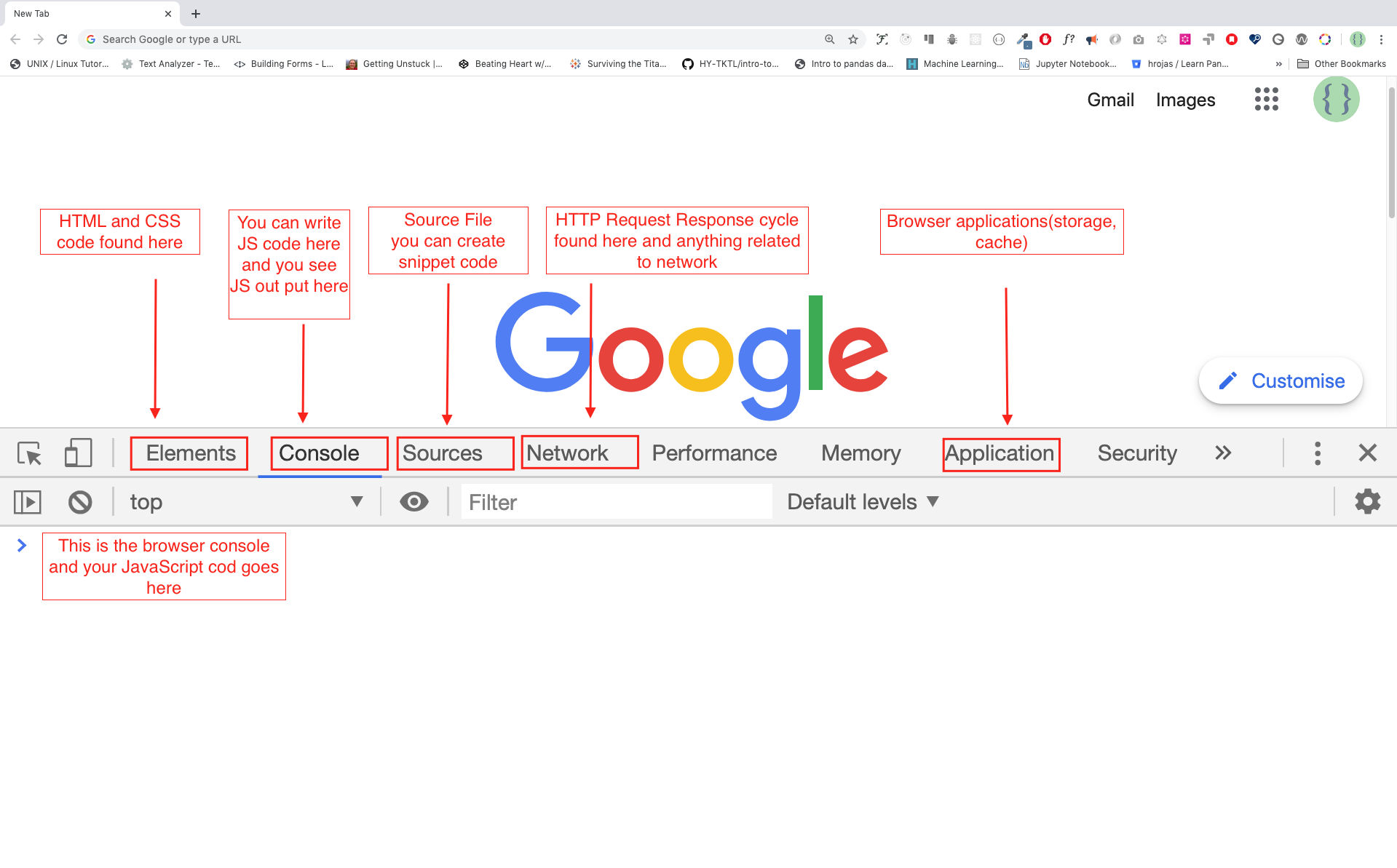
After you open the Google Chrome console, try to explore the marked buttons. We will spend most of the time on the Console. The Console is the place where your JavaScript code goes. The Google Console V8 engine changes your JavaScript code to machine code. Let us write a JavaScript code on the Google Chrome console:
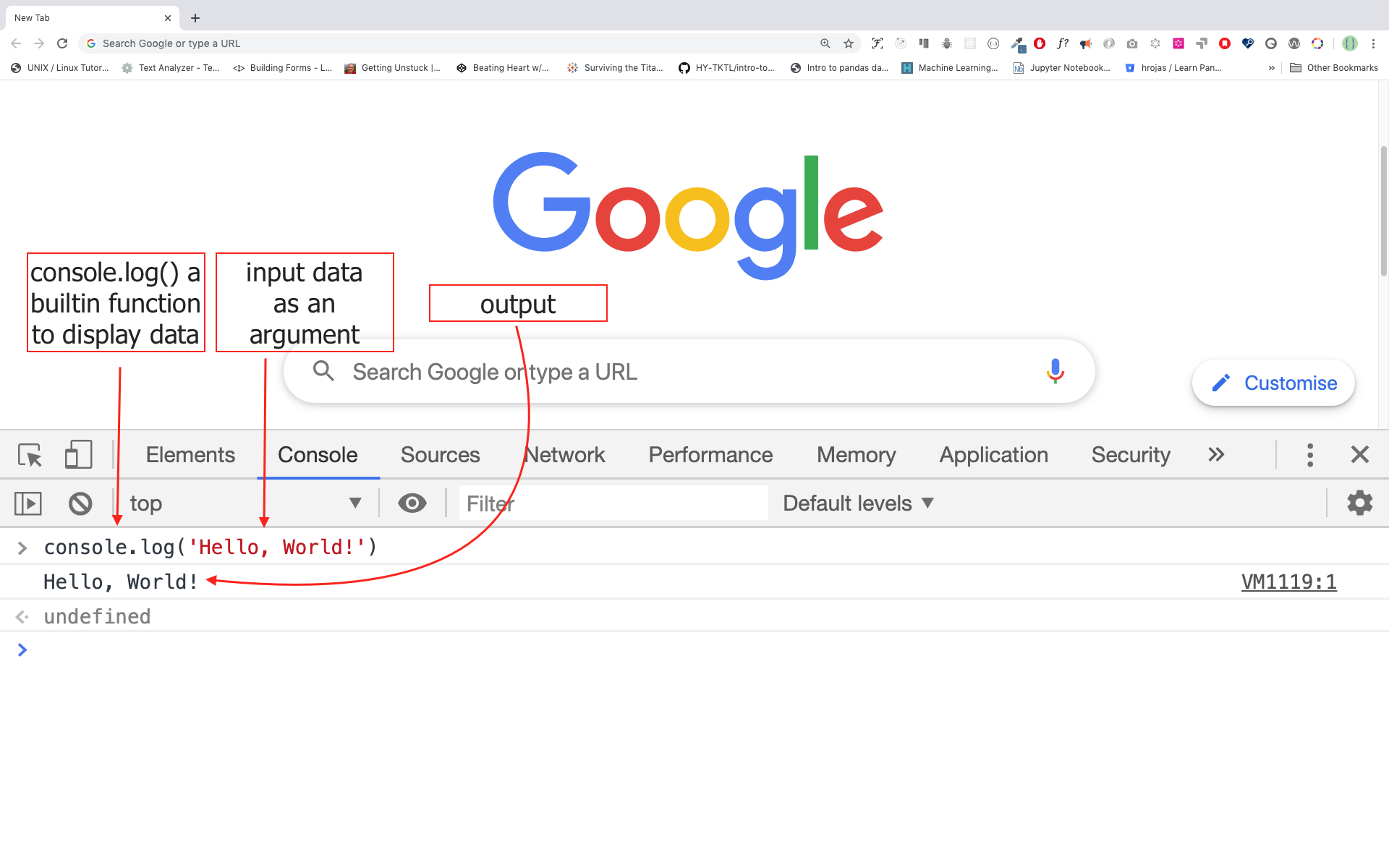
Writing Code on Browser Console
We can write any JavaScript code on the Google console or any browser console. However, for this challenge, we only focus on Google Chrome console. Open the console using:
Mac
Command+Option+I

Windows:
Ctl+Shift+I
Console.log
To write our first JavaScript code, we used a built-in function console.log(). We passed an argument as input data, and the function displays the output. We passed 'Hello, World' as input data or argument in the console.log() function.
console.log('Hello, World!')
Console.log with Multiple Arguments
The console.log() function can take multiple parameters separated by commas. The syntax looks like as follows:console.log(param1, param2, param3)
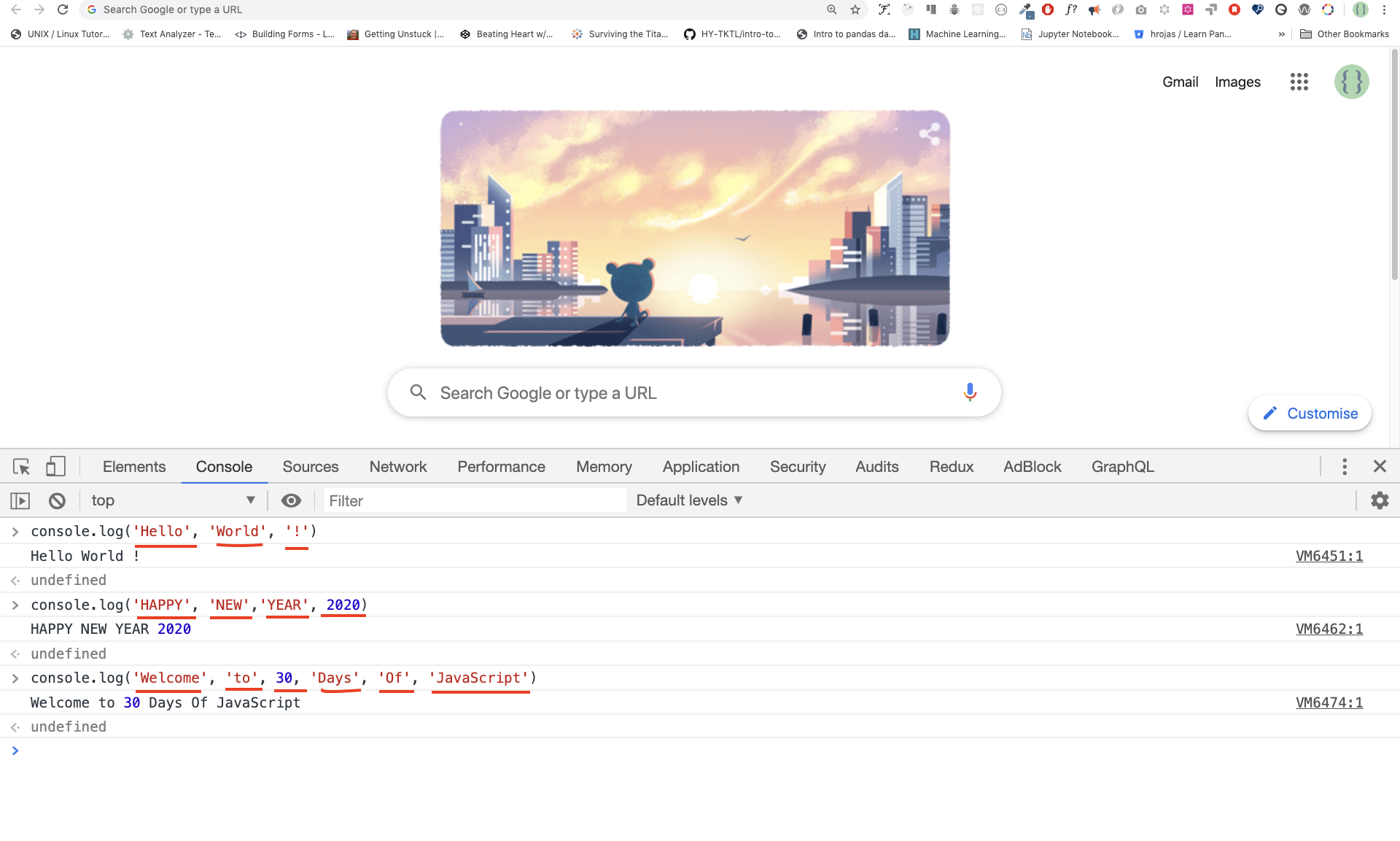
console.log('Hello', 'World', '!')
console.log('HAPPY', 'NEW', 'YEAR', 2020)
console.log('Welcome', 'to', 30, 'Days', 'Of', 'JavaScript')
As you can see from the snippet code above, console.log() can take multiple arguments.
Congratulations! You wrote your first JavaScript code using console.log().
Comments
We can add comments to our code. Comments are very important to make code more readable and to leave remarks in our code. JavaScript does not execute the comment part of our code. In JavaScript, any text line starting with // in JavaScript is a comment, and anything enclosed like this // is also a comment.
Example: Single Line Comment
// This is the first comment
// This is the second comment
// I am a single line comment
Example: Multiline Comment
/*
This is a multiline comment
 Multiline comments can take multiple lines
 JavaScript is the language of the web
 */
Syntax
Programming languages are similar to human languages. English or many other language uses words, phrases, sentences, compound sentences and other more to convey a meaningful message. The English meaning of syntax is the arrangement of words and phrases to create well-formed sentences in a language. The technical definition of syntax is the structure of statements in a computer language. Programming languages have syntax. JavaScript is a programming language and like other programming languages it has its own syntax. If we do not write a syntax that JavaScript understands, it will raise different types of errors. We will explore different kinds of JavaScript errors later. For now, let us see syntax errors.
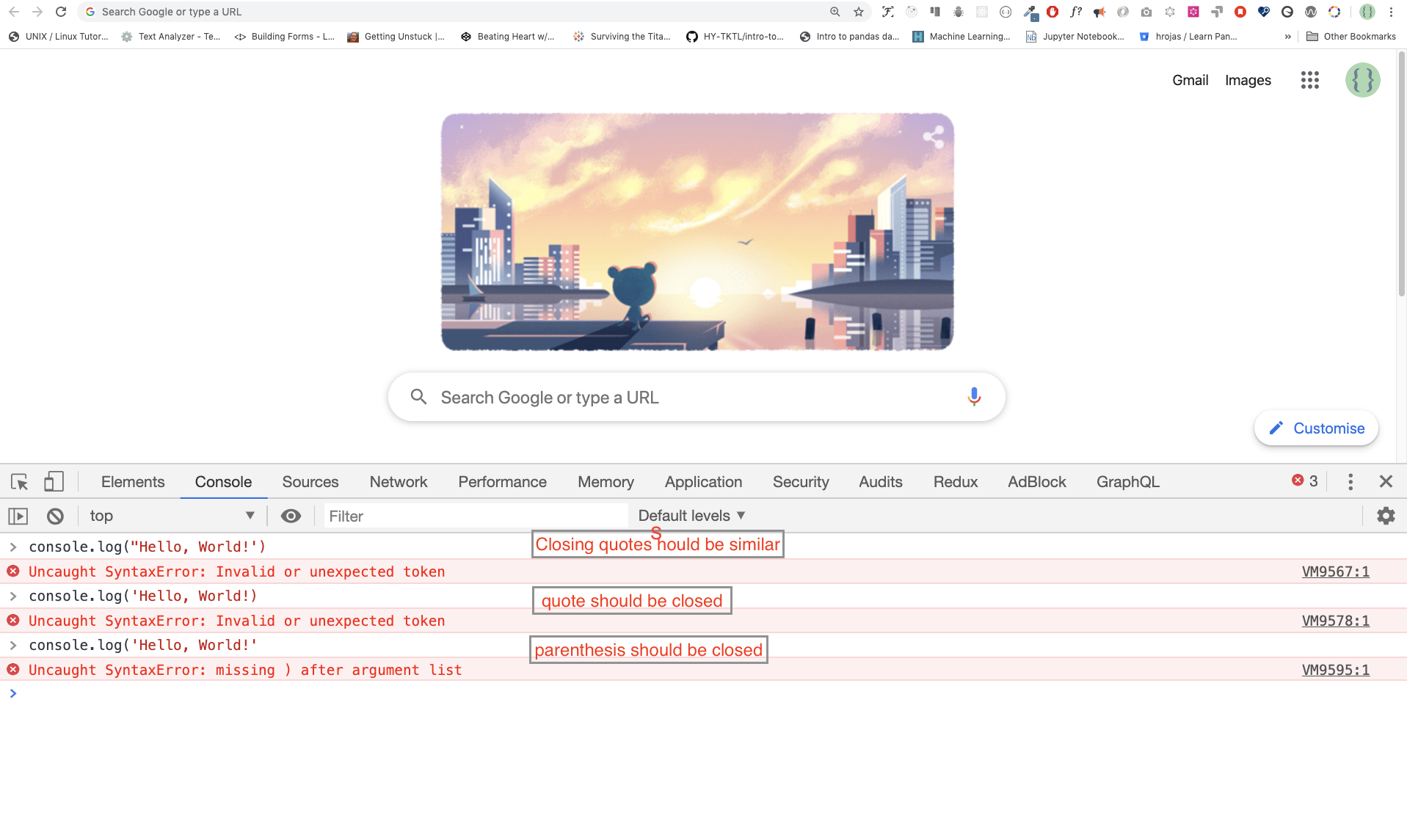
I made a deliberate mistake. As a result, the console raises syntax errors. Actually, the syntax is very informative. It informs what type of mistake was made. By reading the error feedback guideline, we can correct the syntax and fix the problem. The process of identifying and removing errors from a program is called debugging. Let us fix the errors:
console.log('Hello, World!')
console.log('Hello, World!')
So far, we saw how to display text using the console.log(). If we are printing text or string using console.log(), the text has to be inside the single quotes, double quotes, or a backtick.
Example:
console.log('Hello, World!')
console.log("Hello, World!")
console.log(`Hello, World!`)
Arithmetics
Now, let us practice more writing JavaScript codes using console.log() on Google Chrome console for number data types.
In addition to the text, we can also do mathematical calculations using JavaScript. Let us do the following simple calculations.
It is possible to write JavaScript code on Google Chrome console can directly without the console.log() function. However, it is included in this introduction because most of this challenge would be taking place in a text editor where the usage of the function would be mandatory. You can play around directly with instructions on the console.
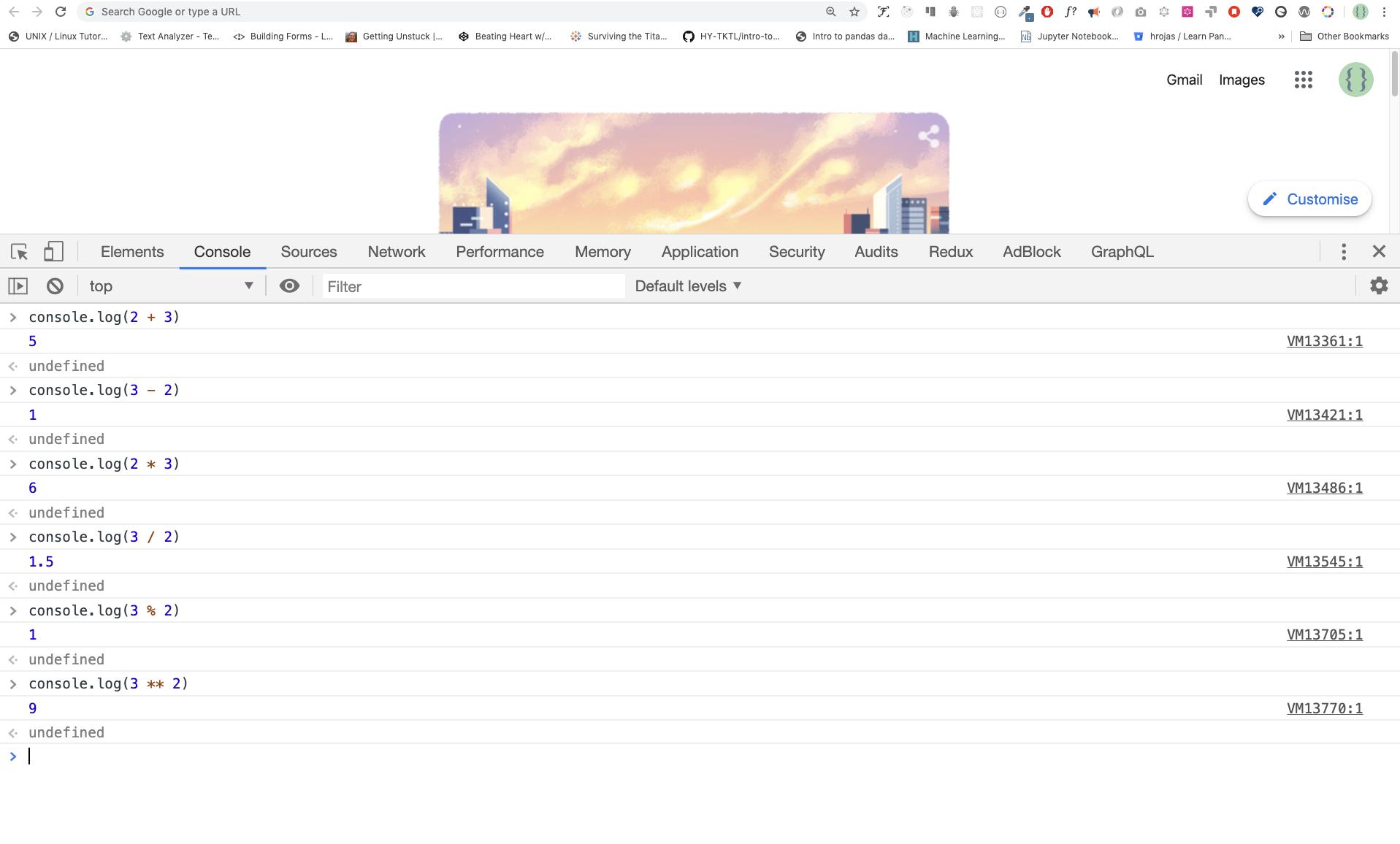
console.log(2 + 3) // Addition
console.log(3 - 2) // Subtraction
console.log(2 * 3) // Multiplication
console.log(3 / 2) // Division
console.log(3 % 2) // Modulus - finding remainder
console.log(3 ** 2) // Exponentiation 3 ** 2 == 3 * 3
Code Editor
We can write our codes on the browser console, but it won't be for bigger projects. In a real working environment, developers use different code editors to write their codes. In this 30 days of JavaScript challenge, we will be using Visual Studio Code.
Installing Visual Studio Code
Visual Studio Code is a very popular open-source text editor. I would recommend to download Visual Studio Code, but if you are in favor of other editors, feel free to follow with what you have.
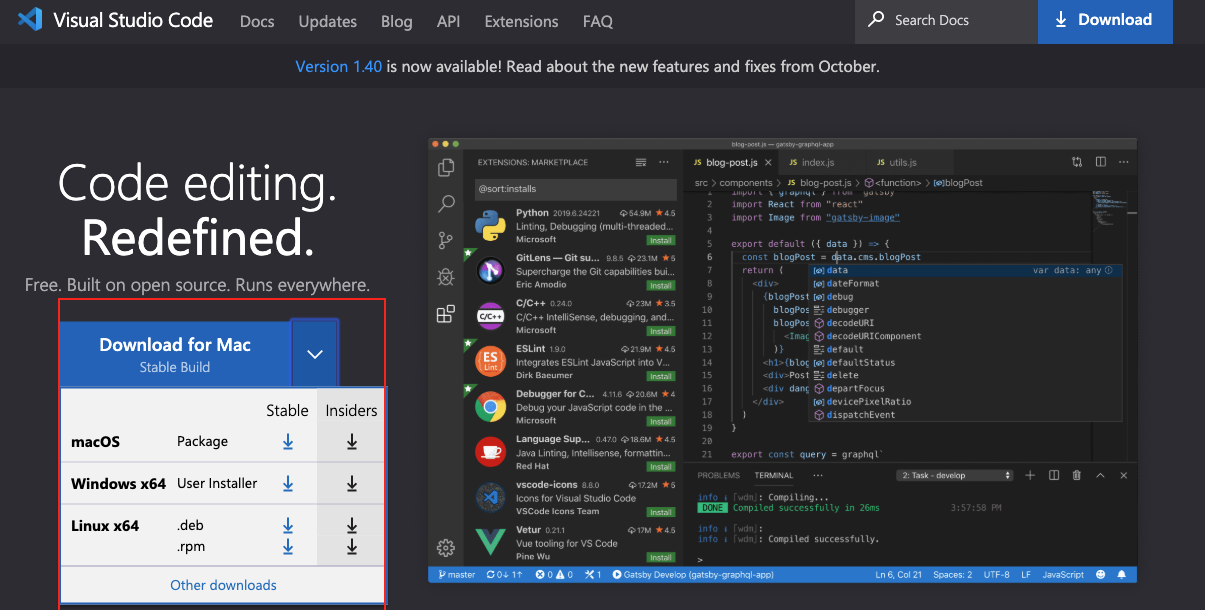
If you installed Visual Studio Code, let us start using it.
How to Use Visual Studio Code
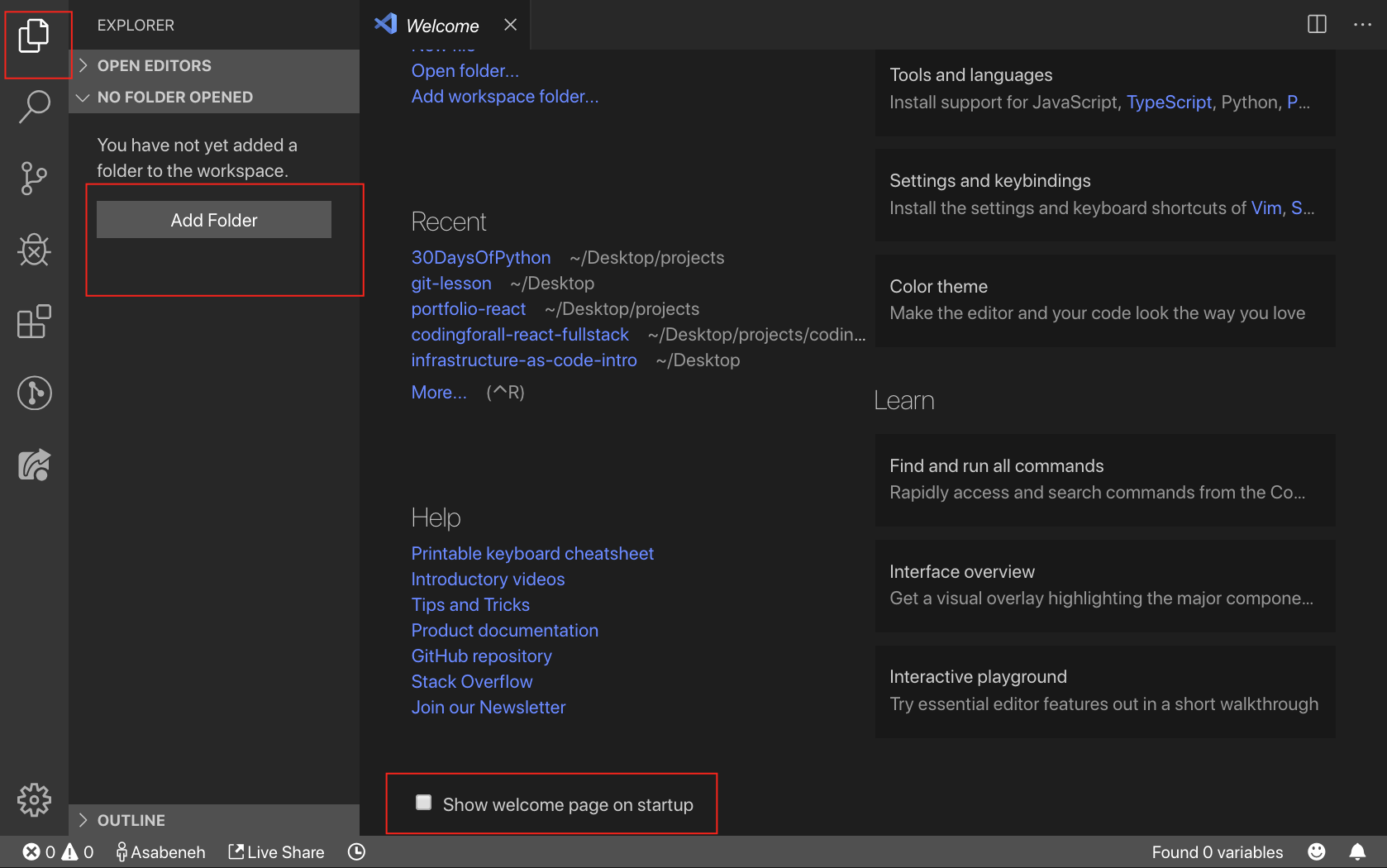
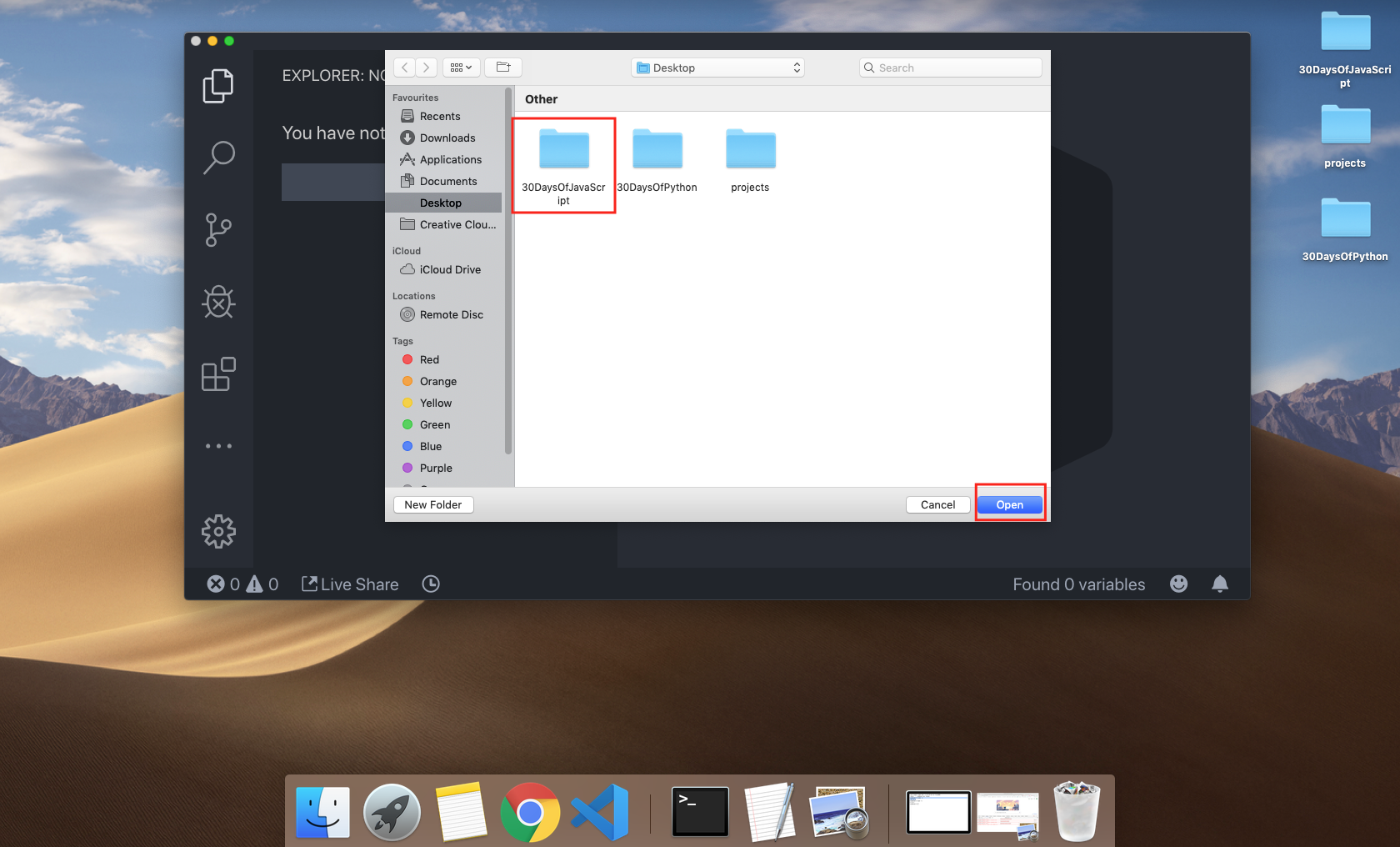
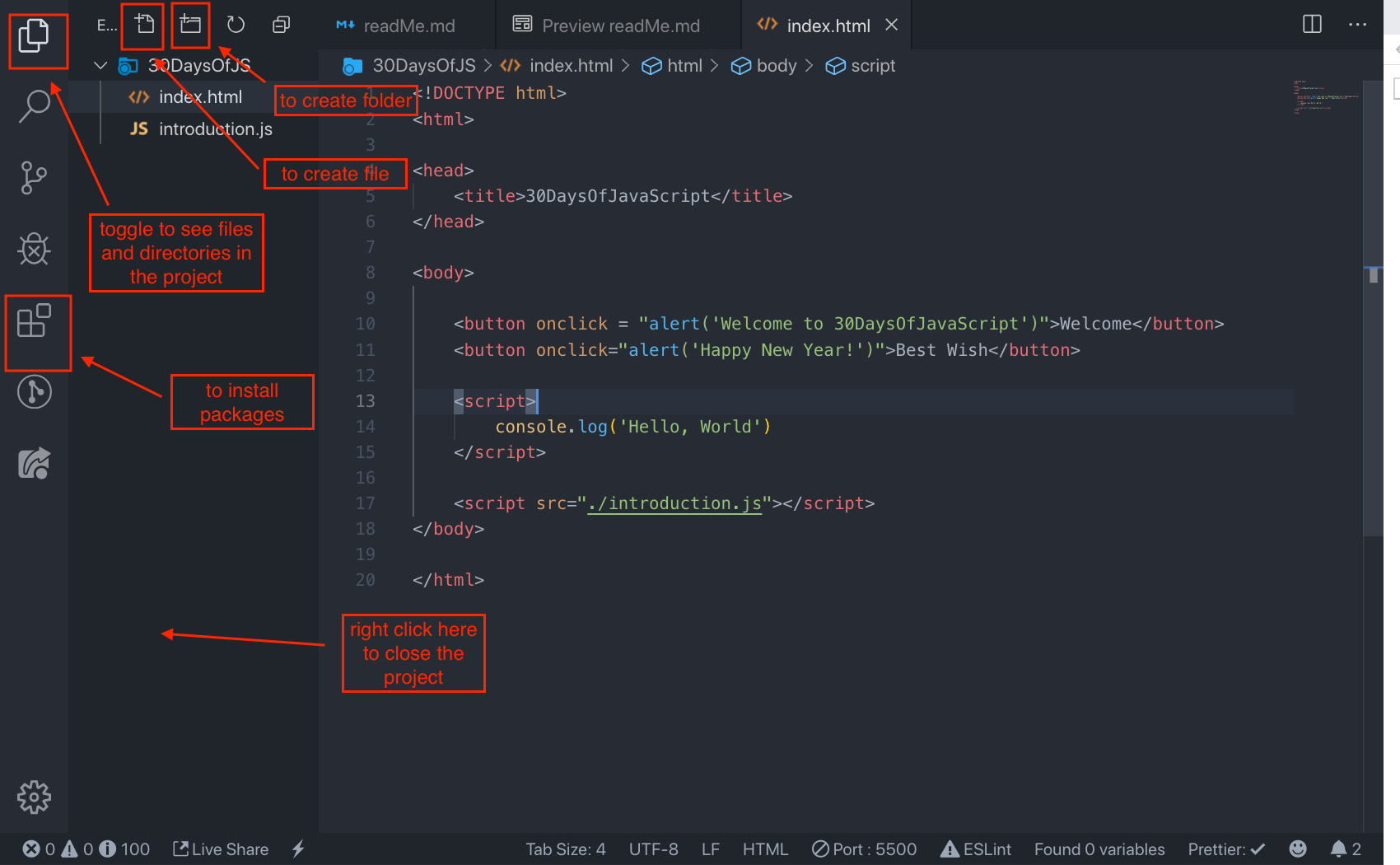
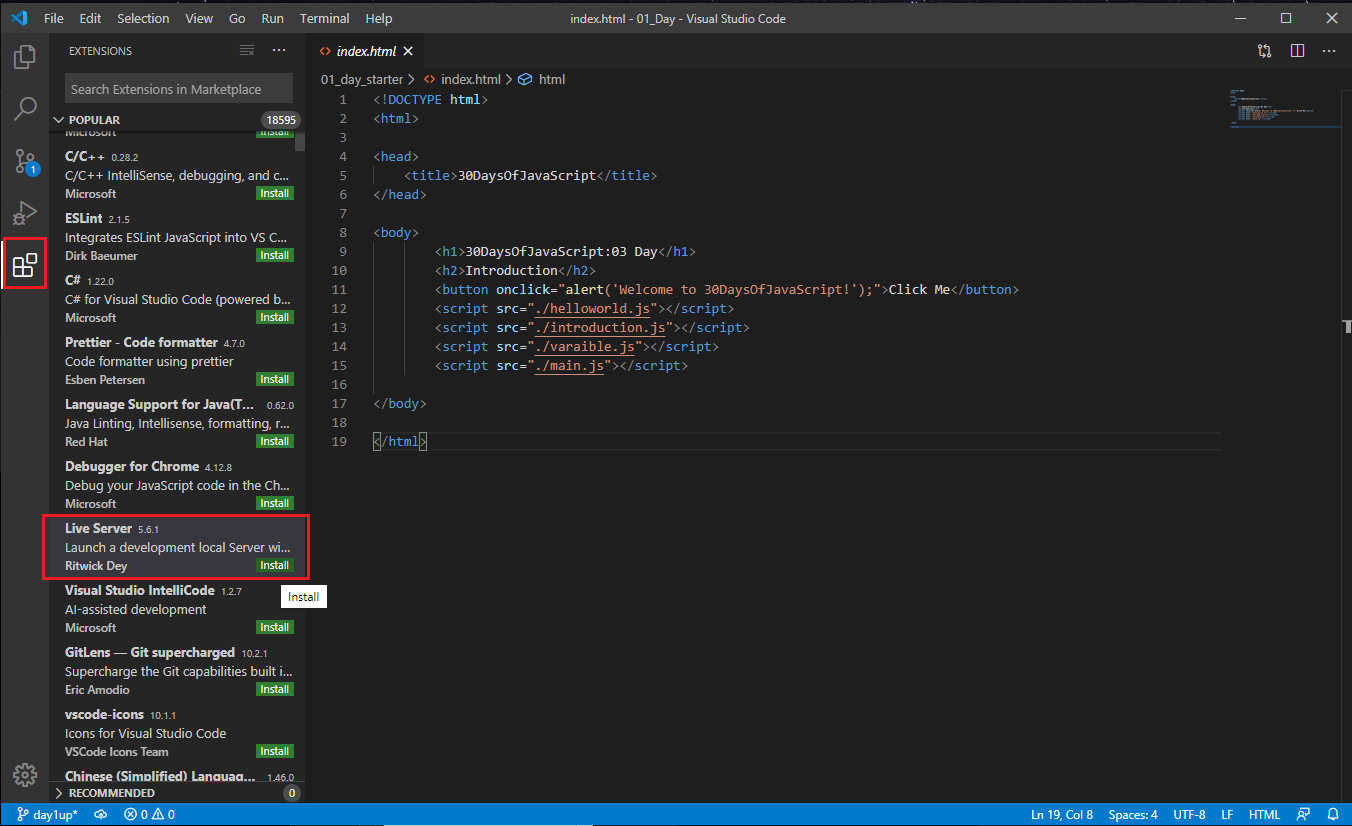
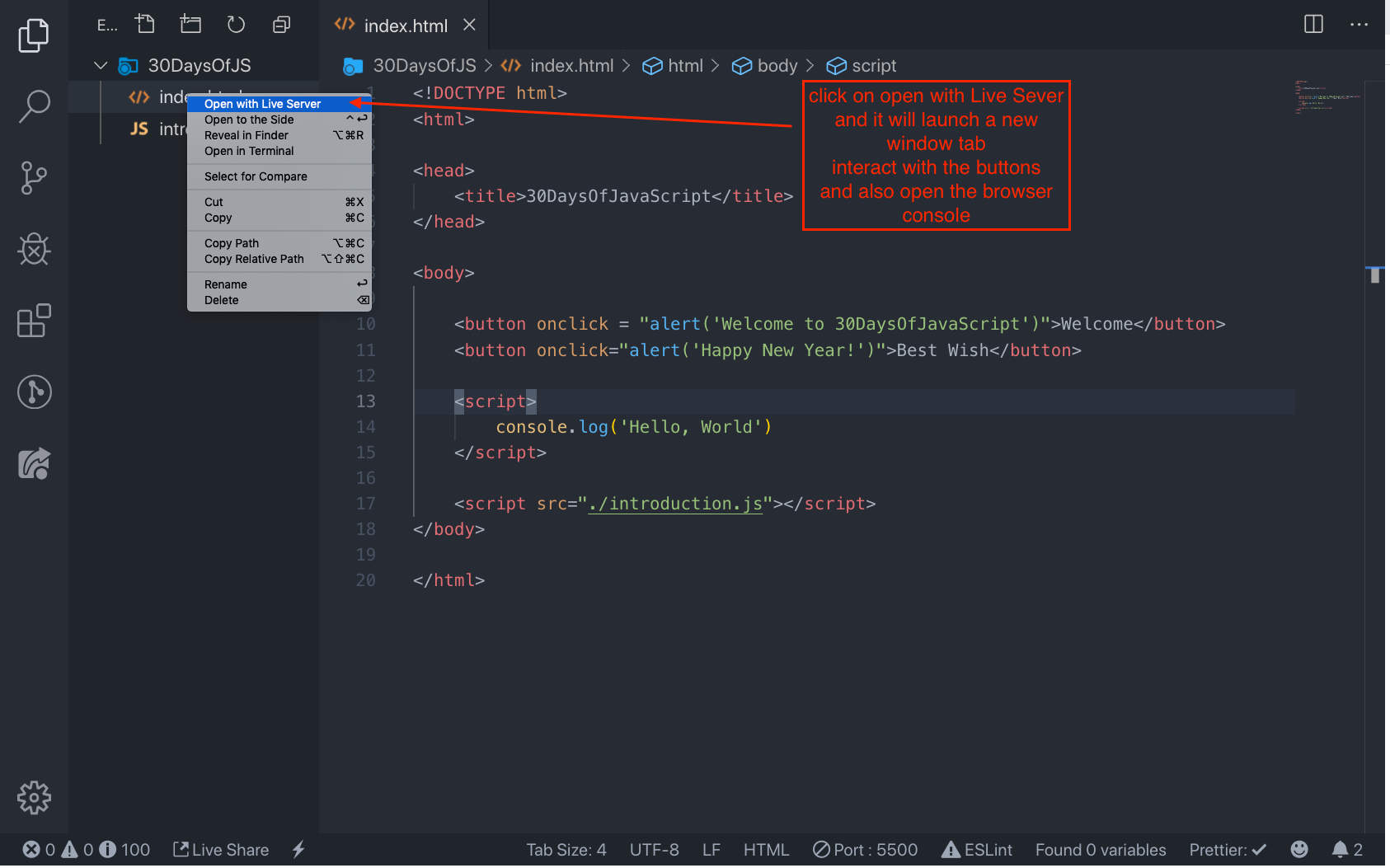
Open the Visual Studio Code by double-clicking its icon. When you open it, you will get this kind of interface. Try to interact with the labeled icons.

Adding JavaScript to a Web Page
JavaScript can be added to a web page in three different ways:
- Inline script
- Internal script
- External script
- Multiple External scripts
The following sections show different ways of adding JavaScript code to your web page.
Inline Script
Create a project folder on your desktop or in any location, name it 30DaysOfJS and create an index.html file in the project folder. Then paste the following code and open it in a browser, for example Chrome.
<!DOCTYPE html>
<html lang="en">
  <head>
    <title>30DaysOfScript:Inline Script</title>
  </head>
  <body>
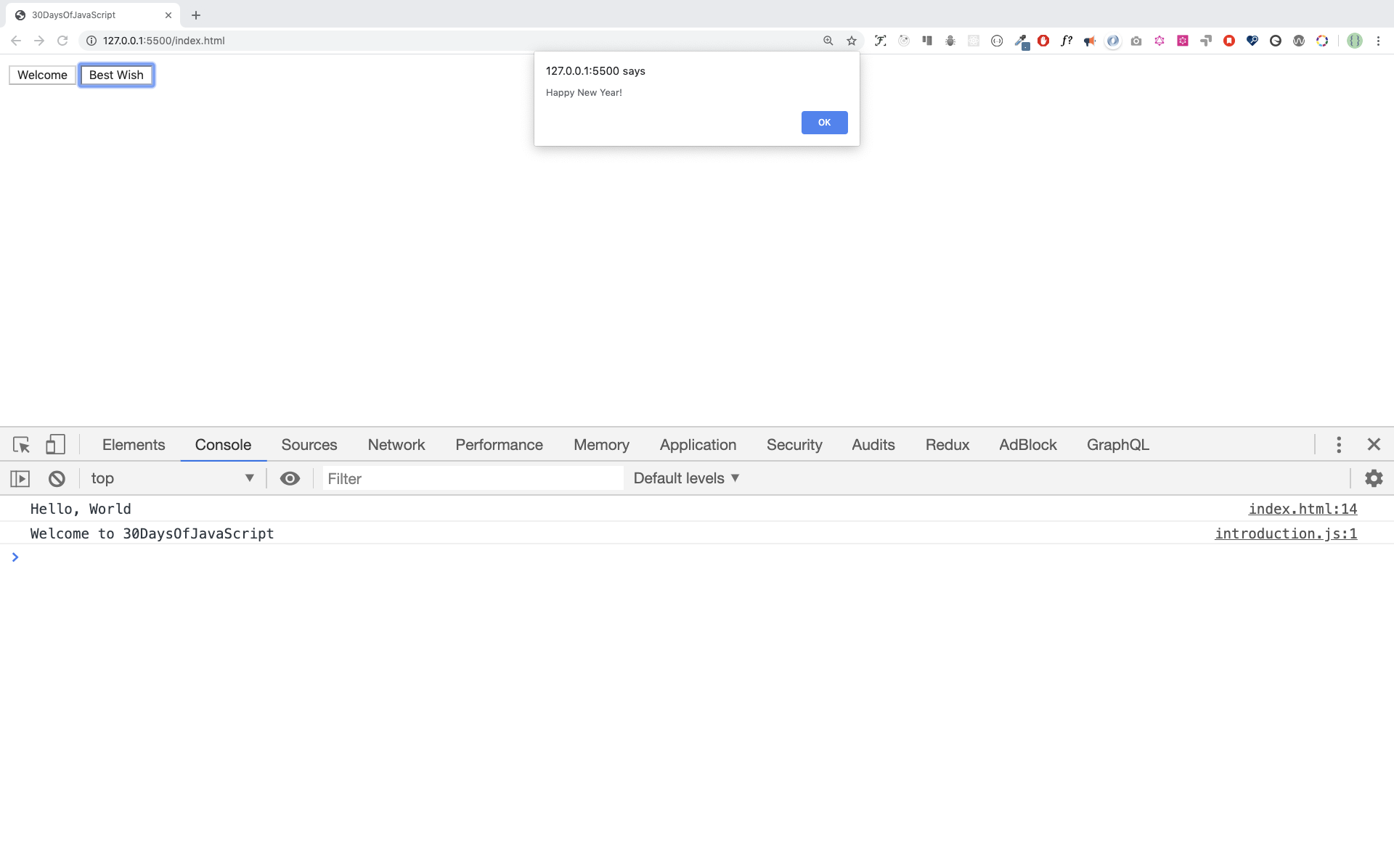
    <button onclick="alert('Welcome to 30DaysOfJavaScript!')">Click Me</button>
  </body>
</html>
Now, you just wrote your first inline script. We can create a pop up alert message using the alert() built-in function.
Internal Script
The internal script can be written in the head or the body, but it is preferred to put it on the body of the HTML document.
First, let us write on the head part of the page.
<!DOCTYPE html>
<html lang="en">
  <head>
    <title>30DaysOfScript:Internal Script</title>
    <script>
      console.log('Welcome to 30DaysOfJavaScript')
    </script>
  </head>
  <body></body>
</html>
This is how we write an internal script most of the time. Writing the JavaScript code in the body section is the most preferred option. Open the browser console to see the output from the console.log().
<!DOCTYPE html>
<html lang="en">
  <head>
    <title>30DaysOfScript:Internal Script</title>
  </head>
  <body>
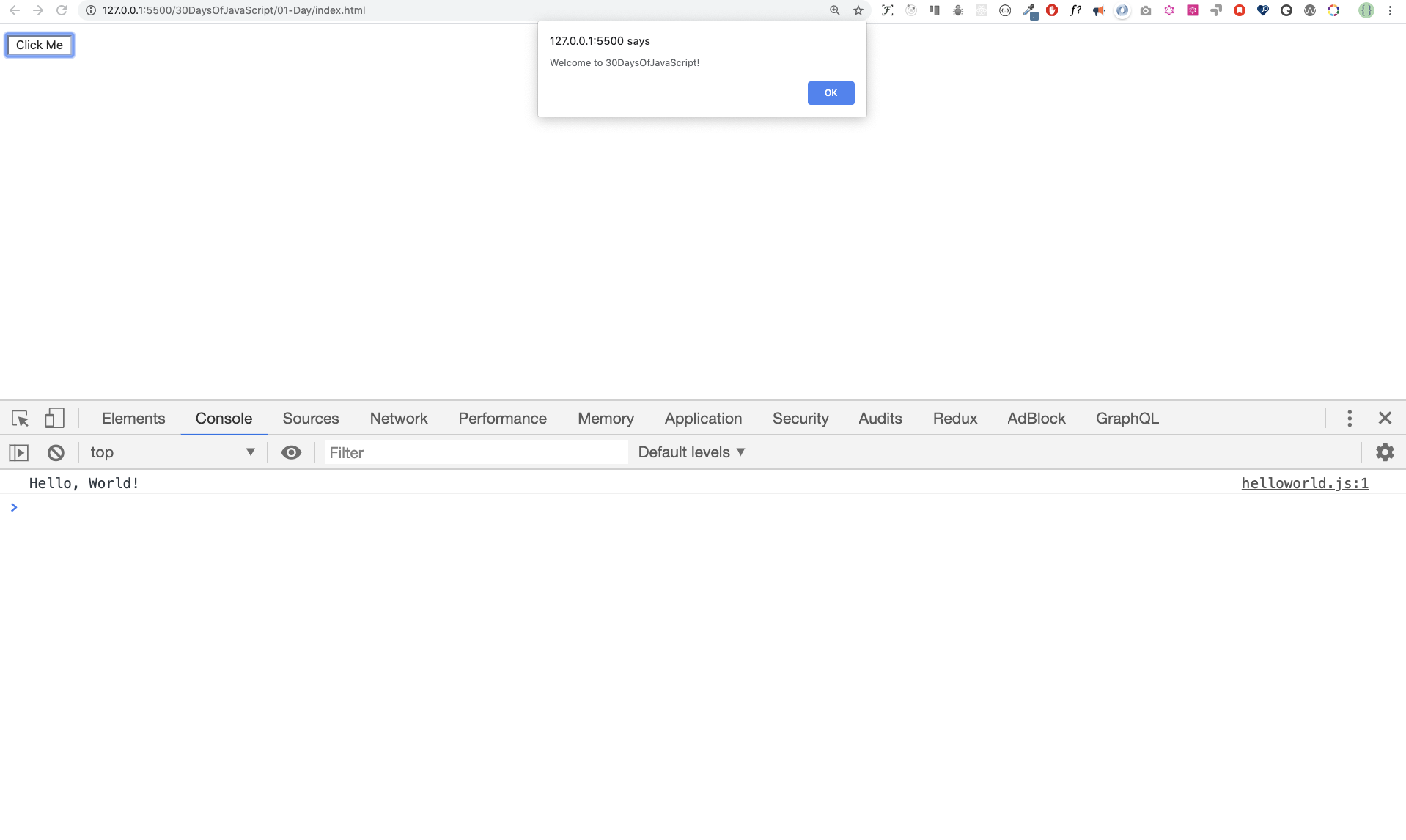
    <button onclick="alert('Welcome to 30DaysOfJavaScript!');">Click Me</button>
    <script>
      console.log('Welcome to 30DaysOfJavaScript')
    </script>
  </body>
</html>
Open the browser console to see the output from the console.log().
External Script
Similar to the internal script, the external script link can be on the header or body, but it is preferred to put it in the body. First, we should create an external JavaScript file with .js extension. All files ending with .js extension are JavaScript files. Create a file named introduction.js inside your project directory and write the following code and link this .js file at the bottom of the body.
console.log('Welcome to 30DaysOfJavaScript')
External scripts in the head:
<!DOCTYPE html>
<html lang="en">
  <head>
    <title>30DaysOfJavaScript:External script</title>
    <script src="introduction.js"></script>
  </head>
  <body></body>
</html>
External scripts in the body:
<!DOCTYPE html>
<html lang="en">
  <head>
    <title>30DaysOfJavaScript:External script</title>
  </head>
  <body>
    <!-- JavaScript external link could be in the header or in the body -->
    <!-- Before the closing tag of the body is the recommended place to put the external JavaScript script -->
    <script src="introduction.js"></script>
  </body>
</html>
Open the browser console to see the output of the console.log().
Multiple External Scripts
We can also link multiple external JavaScript files to a web page.
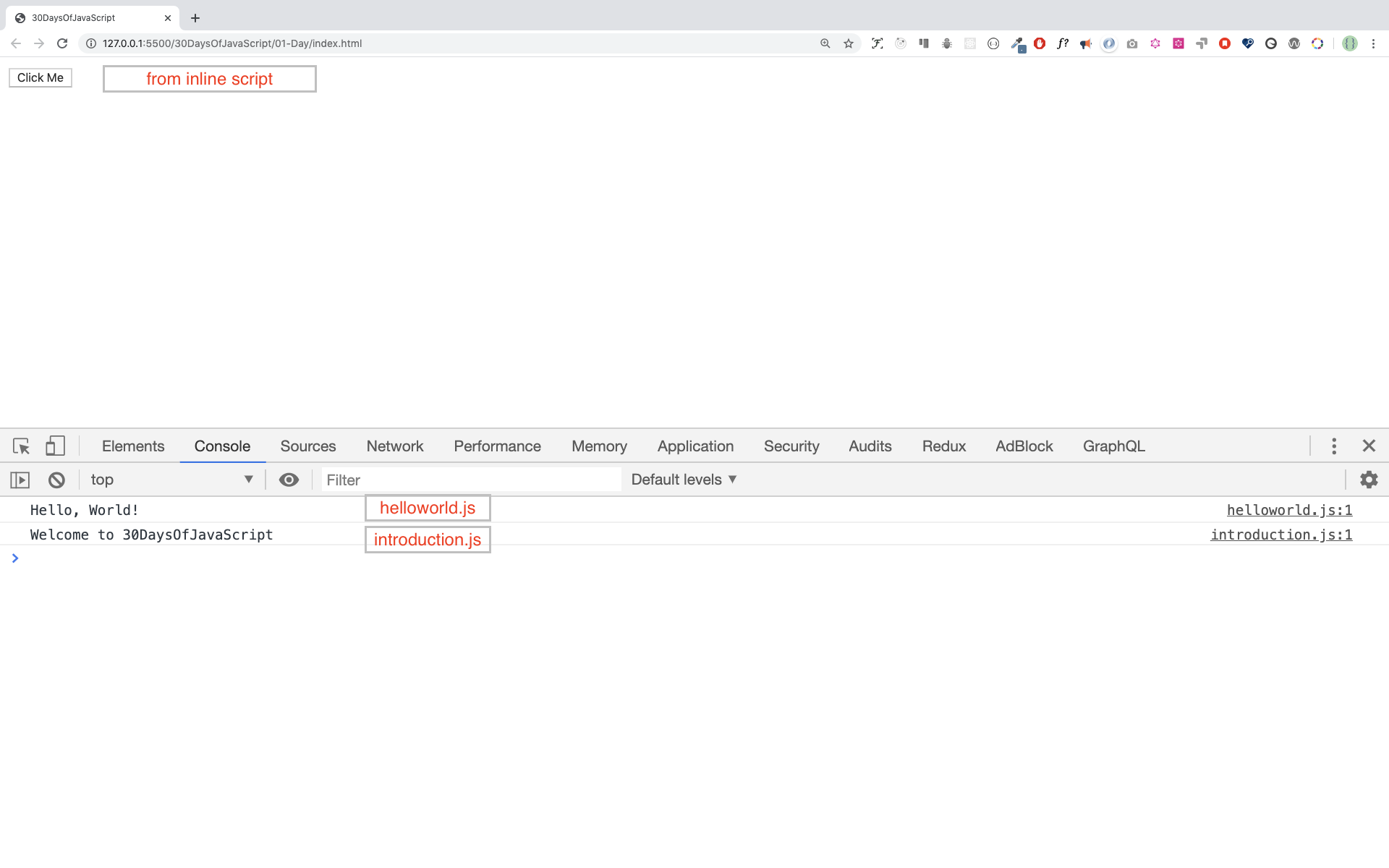
Create a helloworld.js file inside the 30DaysOfJS folder and write the following code.
console.log('Hello, World!')
<!DOCTYPE html>
<html lang="en">
  <head>
    <title>Multiple External Scripts</title>
  </head>
  <body>
    <script src="./helloworld.js"></script>
    <script src="./introduction.js"></script>
  </body>
</html>
Your main.js file should be below all other scripts. It is very important to remember this.
Introduction to Data types
In JavaScript and also other programming languages, there are different types of data types. The following are JavaScript primitive data types: String, Number, Boolean, undefined, Null, and Symbol.
Numbers
- Integers: Integer (negative, zero and positive) numbers Example: ... -3, -2, -1, 0, 1, 2, 3 ...
- Float-point numbers: Decimal number Example ... -3.5, -2.25, -1.0, 0.0, 1.1, 2.2, 3.5 ...
Strings
A collection of one or more characters between two single quotes, double quotes, or backticks.
Example:
'a'
'Asabeneh'
"Asabeneh"
'Finland'
'JavaScript is a beautiful programming language'
'I love teaching'
'I hope you are enjoying the first day'
`We can also create a string using a backtick`
'A string could be just as small as one character or as big as many pages'
'Any data type under a single quote, double quote or backtick is a string'
Booleans
A boolean value is either True or False. Any comparisons returns a boolean value, which is either true or false.
A boolean data type is either a true or false value.
Example:
true // if the light is on, the value is true
false // if the light is off, the value is false
Undefined
In JavaScript, if we don't assign a value to a variable, the value is undefined. In addition to that, if a function is not returning anything, it returns undefined.
let firstName
console.log(firstName) // undefined, because it is not assigned to a value yet
Null
Null in JavaScript means an empty value.
let emptyValue = null
Checking Data Types
To check the data type of a certain variable, we use the typeof operator. See the following example.
console.log(typeof 'Asabeneh') // string
console.log(typeof 5) // number
console.log(typeof true) // boolean
console.log(typeof null) // object type
console.log(typeof undefined) // undefined
Comments Again
Remember that commenting in JavaScript is similar to other programming languages. Comments are important in making your code more readable. There are two ways of commenting:
- Single line commenting
- Multiline commenting
// commenting the code itself with a single comment
// let firstName = 'Asabeneh'; single line comment
// let lastName = 'Yetayeh'; single line comment
Multiline commenting:
/*
  let location = 'Helsinki';
  let age = 100;
  let isMarried = true;
  This is a Multiple line comment
*/
Variables
Variables are containers of data. Variables are used to store data in a memory location. When a variable is declared, a memory location is reserved. When a variable is assigned to a value (data), the memory space will be filled with that data. To declare a variable, we use var, let, or const keywords.
For a variable that changes at a different time, we use let. If the data does not change at all, we use const. For example, PI, country name, gravity do not change, and we can use const. We will not use var in this challenge and I don't recommend you to use it. It is error prone way of declaring variable it has lots of leak. We will talk more about var, let, and const in detail in other sections (scope). For now, the above explanation is enough.
A valid JavaScript variable name must follow the following rules:
- A JavaScript variable name should not begin with a number.
- A JavaScript variable name does not allow special characters except dollar sign and underscore.
- A JavaScript variable name follows a camelCase convention.
- A JavaScript variable name should not have space between words.
The following are examples of valid JavaScript variables.
firstName
lastName
country
city
capitalCity
age
isMarried

first_name
last_name
is_married
capital_city

num1
num_1
_num_1
$num1
year2020
year_2020
The first and second variables on the list follows the camelCase convention of declaring in JavaScript. In this material, we will use camelCase variables(camelWithOneHump). We use CamelCase(CamelWithTwoHump) to declare classes, we will discuss about classes and objects in other section.
Example of invalid variables:
  first-name
  1_num
  num_#_1
Let us declare variables with different data types. To declare a variable, we need to use let or const keyword before the variable name. Following the variable name, we write an equal sign (assignment operator), and a value(assigned data).
// Syntax
let nameOfVariable = value
The nameOfVriable is the name that stores different data of value. See below for detail examples.
Examples of declared variables
// Declaring different variables of different data types
let firstName = 'Asabeneh' // first name of a person
let lastName = 'Yetayeh' // last name of a person
let country = 'Finland' // country
let city = 'Helsinki' // capital city
let age = 100 // age in years
let isMarried = true

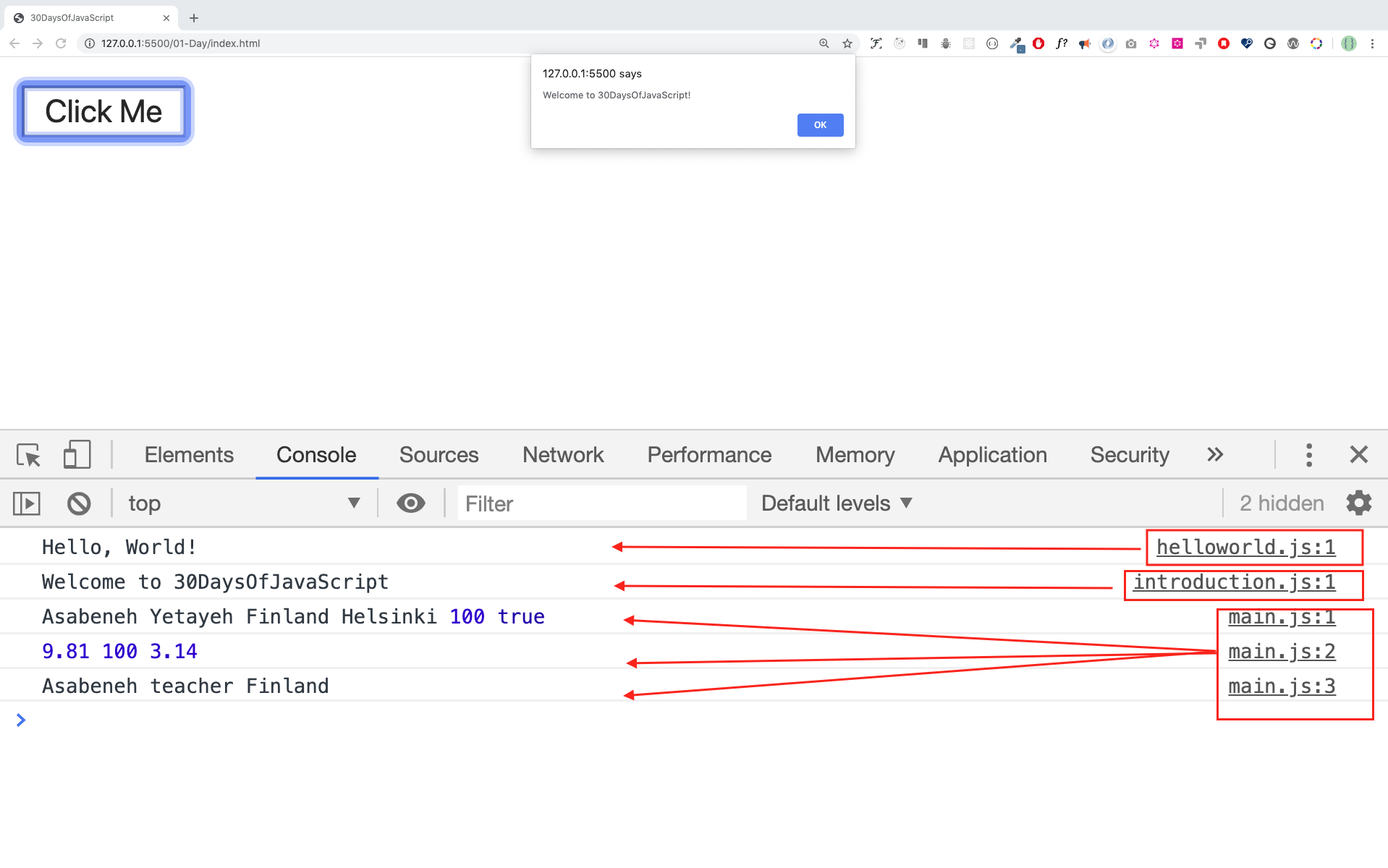
console.log(firstName, lastName, country, city, age, isMarried)
Asabeneh Yetayeh Finland Helsinki 100 true
// Declaring variables with number values
let age = 100 // age in years
const gravity = 9.81 // earth gravity  in m/s2
const boilingPoint = 100 // water boiling point, temperature in °C
const PI = 3.14 // geometrical constant
console.log(gravity, boilingPoint, PI)
9.81 100 3.14
// Variables can also be declaring in one line separated by comma, however I recommend to use a seperate line to make code more readble
let name = 'Asabeneh', job = 'teacher', live = 'Finland'
console.log(name, job, live)
Asabeneh teacher Finland
When you run index.html file in the 01-Day folder you should get this:
🌕 You are amazing! You have just completed day 1 challenge and you are on your way to greatness. Now do some exercises for your brain and muscle.
💻 Day 1: Exercises
-
Write a single line comment which says, comments can make code readable
-
Write another single comment which says, Welcome to 30DaysOfJavaScript
-
Write a multiline comment which says, comments can make code readable, easy to reuse and informative
-
Create a variable.js file and declare variables and assign string, boolean, undefined and null data types
-
Create datatypes.js file and use the JavaScript typeof operator to check different data types. Check the data type of each variable
-
Declare four variables without assigning values
-
Declare four variables with assigned values
-
Declare variables to store your first name, last name, marital status, country and age in multiple lines
-
Declare variables to store your first name, last name, marital status, country and age in a single line
-
Declare two variables myAge and yourAge and assign them initial values and log to the browser console.
I am 25 years old.
You are 30 years old.
🎉 CONGRATULATIONS ! 🎉
Discover Repositories
Search across tracked repositories by name or description