
hcengineering/platform
Huly — All-in-One Project Management Platform (alternative to Linear, Jira, Slack, Notion, Motion)
Build with Backblaze B2
SDKs, agent skills, IDE extensions, and reference pipelines from Backblaze Labs. All open source.
Loading star history...
Use Cases & Benefits
- Huly Platform is an all-in-one project management solution integrating CRM, HRM, ATS, chat, and issue tracking, serving as an alternative to Linear, Jira, Slack, and Notion.
- Built with TypeScript, it supports Docker-based self-hosting, offers a typed API client for integrations, and uses MongoDB, Elasticsearch, and MinIO for backend services.
- Strengths include extensive modularity, active development, and production-ready stable releases; limitations include lack of email support in local installs and resource-heavy Docker requirements.
- Organizations can deploy Huly on-premises using Docker for full control, customize via API, and leverage it for unified team collaboration, applicant tracking, and project management workflows.
- Ideal for medium to large teams needing a customizable, integrated platform for project management, CRM, HR, and support without relying on multiple disconnected tools.
About platform
Huly Platform


⭐️ Your star shines on us. Star us on GitHub!
About
The Huly Platform is a robust framework designed to accelerate the development of business applications, such as CRM systems. This repository includes several applications, such as Chat, Project Management, CRM, HRM, and ATS. Various teams are building products on top of the Platform, including Huly and TraceX.
Self-Hosting
If you're primarily interested in self-hosting Huly without the intention to modify or contribute to its development, please use huly-selfhost.
This project offers a convenient method to host Huly using docker, designed for ease of use and quick setup. Explore this option to effortlessly enjoy Huly on your own server.
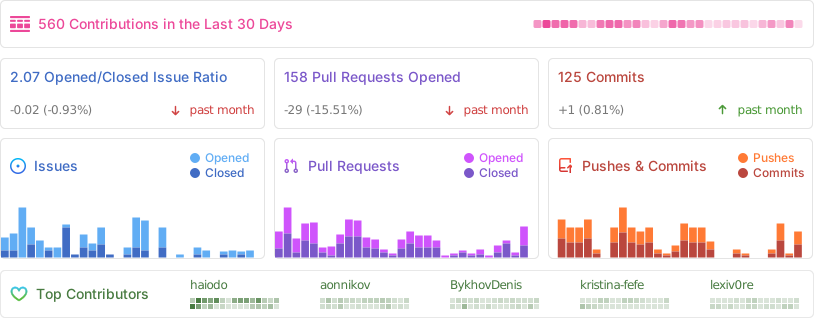
Activity
API Client
If you want to interact with Huly programmatically, check out our API Client documentation. The API client provides a typed interface for all Huly operations and can be used to build integrations and custom applications.
You can find API usage examples in the Huly examples repository.
Changelog
For detailed information about changes, improvements, and bug fixes in each version, see our Changelog.
Versions
The Huly Platform uses two types of version tags to distinguish between production-ready and development releases:
-
Production Versions (
v*) - Stable releases for end users- Example:
v0.7.310,v0.7.307,v0.6.501 - These versions are recommended for production deployments
- Suitable for self-hosted installations
- Published with release notes on GitHub Releases
- Example:
-
Development Versions (
s*) - Pre-release builds for developers- Example:
s0.7.313,s0.7.292,s0.7.288 - Used for development and testing purposes
- May contain experimental features or bug fixes
- Not recommended for production use
- Example:
Architecture
For detailed information about the platform architecture, services, and their interactions, see our Architecture Overview.
Table of Contents
- Huly Platform
- About
- Self-Hosting
- Activity
- API Client
- Changelog
- Versions
- Architecture
- Table of Contents
- Pre-requisites
- Verification
- Branches & Contributing
- Setup dev environment
- Fast start
- Installation
- Build and run
- Run in development mode
- Update project structure and database
- Troubleshooting
- Build & Watch
- Tests
- Package publishing
- Additional testing
- WSL build guide
Pre-requisites
- Before proceeding, ensure that your system meets the following requirements:
- Node.js (v20.11.0 is required)
- Docker
- Docker Compose
Verification
To verify the installation, perform the following checks in your terminal:
- Ensure that the
dockercommands are available:
docker --version
docker compose version
Branches & Contributing
-
The
mainbranch is the default branch used for production deployments. Changes to this branch are made from thestagingbranch once a version is ready for community use. -
The
stagingbranch is used for pre-release testing. It is stable enough for testing but not yet ready for production deployment. -
The
developbranch is used for development and is the default branch for contributions.
We periodically merge develop into staging to perform testing builds. Once we are satisfied with the build quality in our pre-release deployment, we merge changes into main and release a new version to the community.
Setup dev environment
To initialise the communication submodule
git submodule init
git submodule update
To update the communication submodule
git submodule update
Authentication
This project uses GitHub Packages for dependency management. To successfully download dependencies, you need to generate a GitHub personal access token and log in to npm using that token.
Follow these steps:
- Generate a GitHub Token:
- Log in to your GitHub account
- Go to Settings > Developer settings > Personal access tokens (https://github.com/settings/personal-access-tokens)
- Click Generate new token
- Select the required scopes (at least
read:packages) - Generate the token and copy it
- Authenticate with npm:
npm login --registry=https://npm.pkg.github.com
When prompted, enter your GitHub username, use the generated token as your password
Fast start
sh ./scripts/fast-start.sh
Installation
You need Microsoft's rush to install the application.
- Install Rush globally using the command:
npm install -g @microsoft/rush
- Navigate to the repository root and run the following commands:
rush install
rush build
Alternatively, you can just execute:
sh ./scripts/presetup-rush.sh
Build and run
Development environment setup requires Docker to be installed on system.
Support is available for both amd64 and arm64 containers on Linux and macOS.
cd ./dev/
rush build    # Will build all the required packages.
# rush rebuild  # could be used to omit build cache.
rush bundle   # Will prepare bundles.
rush package  # Will build all webpack packages.
rush validate # Will validate all sources with typescript and generate d.ts files required for ts-node execution.
rush svelte-check # Optional. svelte files validation using svelte-check.
rush docker:build   # Will build Docker containers for all applications in the local Docker environment.
rush docker:up # Will set up all the containers
Be aware rush docker:build will automatically execute all required phases like build, bundle, package.
Note: For resource-constrained machines, you can use the minified variants
rush docker:minandrush docker:up:minto build and run only the required services (excludes hulypulse, redis, process, backup, rating, preview, link-preview, elastic, fulltext, payment, stats, print, sign, hulygun, hulykvs).
Alternatively, you can just execute:
sh ./scripts/build.sh
By default, Docker volumes named dev_db, dev_elastic, and dev_files will be created for the MongoDB, Elasticsearch, and MinIO instances.
Add the following lines to your hosts file:
- macOS / Linux:
/etc/hosts - Windows:
C:\Windows\System32\drivers\etc\hosts
127.0.0.1 huly.local
::1 huly.local
Accessing the URL http://huly.local:8087 will lead you to the app in development mode.
Limitations:
- Local installation does not support sending emails, thus disabling functionalities such as password recovery and email notifications.
Run in development mode
Development mode allows for live reloading and a smoother development process.
cd dev/prod
rush validate
rushx dev-server
Then go to http://localhost:8080
Select "Sign up" on the right panel and click the "Sign up with password" link at the bottom. Enter the new user's credentials, then proceed to create a workspace for them.
Update project structure and database
If the project's structure is updated, it may be necessary to relink and rebuild the projects.
rush update
rush build
Troubleshooting
If a build fails, but the code is correct, try to delete the build cache and retry.
# from the project root
rm -rf common/temp/build-cache
Build & Watch
For development purpose rush build:watch action could be used.
It includes build and validate phases in watch mode.
Tests
Unit tests
rush test # To execute all tests

rushx test # For individual test execution inside a package directory
UI tests
cd ./tests
rush build
rush bundle
rush docker:build
## creates test Docker containers and sets up test database
./prepare.sh
## runs UI tests
rushx uitest
To execute tests in the development environment, please follow these steps:
cd ./tests
./create-local.sh ## use ./restore-local.sh if you only want to restore the workspace to a predefined initial state for sanity.
cd ./sanity
rushx dev-uitest # To execute all tests against the development environment.
rushx dev-debug -g 'pattern' # To execute tests in debug mode with only the matching test pattern.
Package publishing
node ./common/scripts/bump.js -p projectName
Additional testing
This project is tested with BrowserStack.
WSL build guide
This guide describes the nuances of building and running the application from source code located on your NTFS drive, which is accessible from both Windows and WSL.
Prerequisites
Disk Space Requirements
Ensure you have sufficient disk space available:
- A fully deployed local application in clean Docker will consume slightly more than 35 GB of WSL virtual disk space
- The application folder after build (sources + artifacts) will occupy 4.5 GB
If there's insufficient space on your system drive (usually C:\), you can change the virtual disk location in Docker Settings → Resources → Advanced.
Docker WSL Integration
Make sure Docker is accessible from WSL:
- Go to Docker Settings → Resources → Advanced → WSL Integration
- Select the distribution where you'll be building and running the application
- Verify integration works by running this command in WSL:
docker run hello-world
Common Issues and Solutions
Git Line Endings on Windows
Windows Git often automatically replaces line endings. Since most build scripts are .sh files, ensure your Windows checkout doesn't break them.
Solution options:
- Checkout from WSL instead of Windows
- Configure Git on Windows to disable auto-replacement:
This disables auto-replacement for all repositories on your machine.git config --global core.autocrlf false
Elevated Privileges in WSL
Some commands in the instructions require elevated privileges when working in WSL. If you're using Ubuntu distribution, prefix commands with sudo:
sudo npm install -g @microsoft/rush
WSL Configuration
If the source code is located on a Windows NTFS drive, then edit the /etc/wsl.conf file in WSL (e.g., sudo nano /etc/wsl.conf) and add the following content if it doesn't exist:
[automount]
enabled = true
root = /mnt/
options = "metadata,umask=22,fmask=11"

[interop]
appendWindowsPath = false
However, we recommend storing the repository on a WSL disk, as this dramatically improves build and maintenance operations.
Running the Application
After these preparations, the build instructions should work without issues.
Port Conflicts
When starting the application (rush docker:up), some network ports in Windows might be occupied. You can fix port mapping in the \dev\docker-compose.yaml file.
Important: Depending on which port you change, you'll need to:
- Find what's using that port
- Update the new address in the corresponding service configuration
© 2025 Hardcore Engineering Inc.
Discover Repositories
Search across tracked repositories by name or description