
hacksider/Deep-Live-Cam
real time face swap and one-click video deepfake with only a single image
Build with Backblaze B2
SDKs, agent skills, IDE extensions, and reference pipelines from Backblaze Labs. All open source.
Loading star history...
Use Cases & Benefits
- Provides real-time face swapping and video deepfake generation using only a single source image.
- Enables instant live deepfake creation with minimal setup and supports multiple execution providers for GPU acceleration.
- Use for creating engaging live shows or performances with dynamic face transformations in real-time.
- Use for animating custom characters or virtual avatars in AI-generated media production workflows.
- Use for enhancing video calls or streaming by impersonating different faces with ethical consent and clear labeling.
About Deep-Live-Cam
Deep-Live-Cam
Real-time face swap and video deepfake with a single click and only a single image.
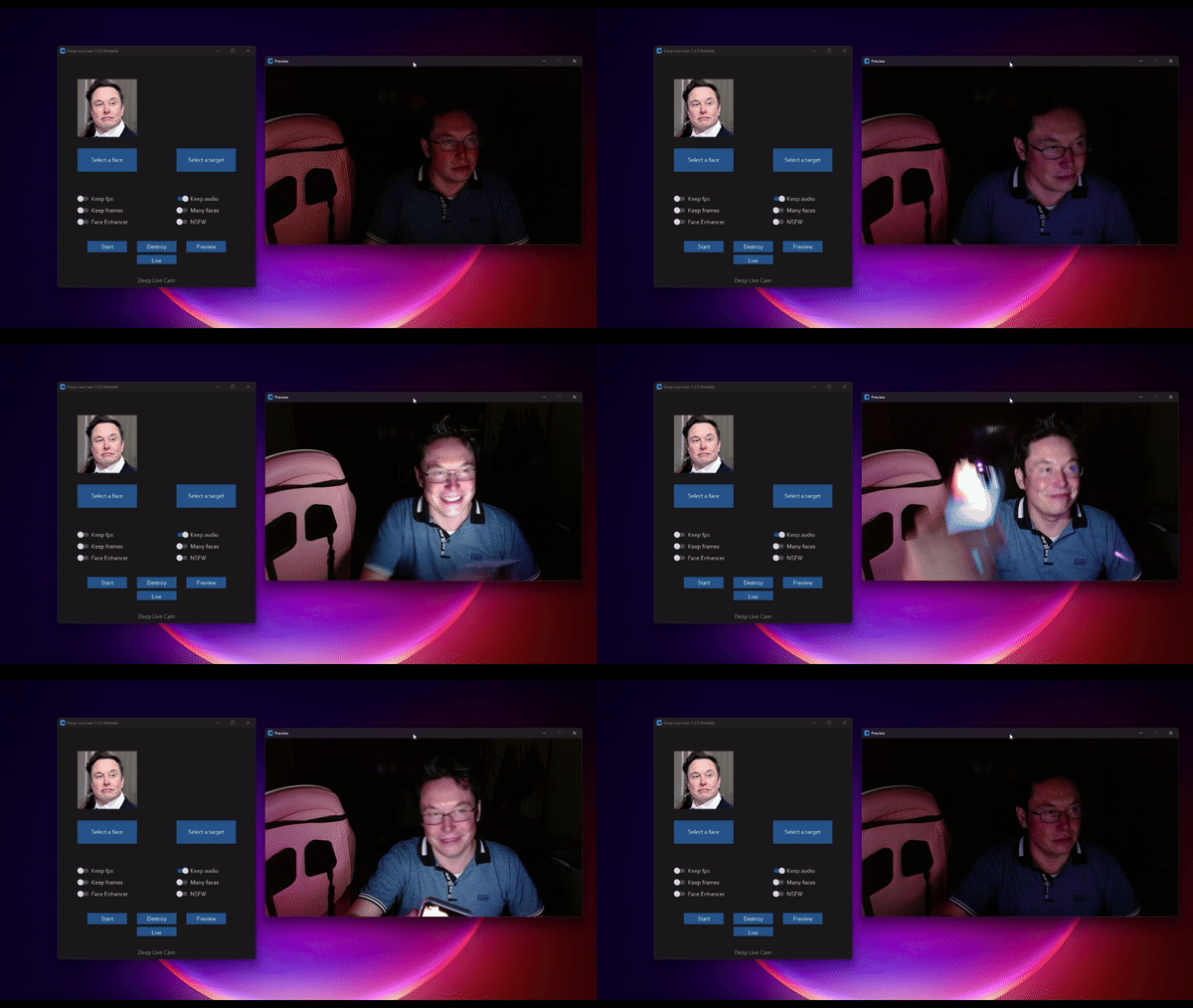
Disclaimer
This deepfake software is designed to be a productive tool for the AI-generated media industry. It can assist artists in animating custom characters, creating engaging content, and even using models for clothing design.
We are aware of the potential for unethical applications and are committed to preventative measures. A built-in check prevents the program from processing inappropriate media (nudity, graphic content, sensitive material like war footage, etc.). We will continue to develop this project responsibly, adhering to the law and ethics. We may shut down the project or add watermarks if legally required.
-
Ethical Use: Users are expected to use this software responsibly and legally. If using a real person's face, obtain their consent and clearly label any output as a deepfake when sharing online.
-
Content Restrictions: The software includes built-in checks to prevent processing inappropriate media, such as nudity, graphic content, or sensitive material.
-
Legal Compliance: We adhere to all relevant laws and ethical guidelines. If legally required, we may shut down the project or add watermarks to the output.
-
User Responsibility: We are not responsible for end-user actions. Users must ensure their use of the software aligns with ethical standards and legal requirements.
By using this software, you agree to these terms and commit to using it in a manner that respects the rights and dignity of others.
Users are expected to use this software responsibly and legally. If using a real person's face, obtain their consent and clearly label any output as a deepfake when sharing online. We are not responsible for end-user actions.
Exclusive v2.2 Quick Start - Pre-built (Windows/Mac Silicon)

This is the fastest build you can get if you have a discrete NVIDIA or AMD GPU or Mac Silicon, And you'll receive special priority support.
These Pre-builts are perfect for non-technical users or those who don't have time to, or can't manually install all the requirements. Just a heads-up: this is an open-source project, so you can also install it manually.
TLDR; Live Deepfake in just 3 Clicks
- Select a face
- Select which camera to use
- Press live!
Features & Uses - Everything is in real-time
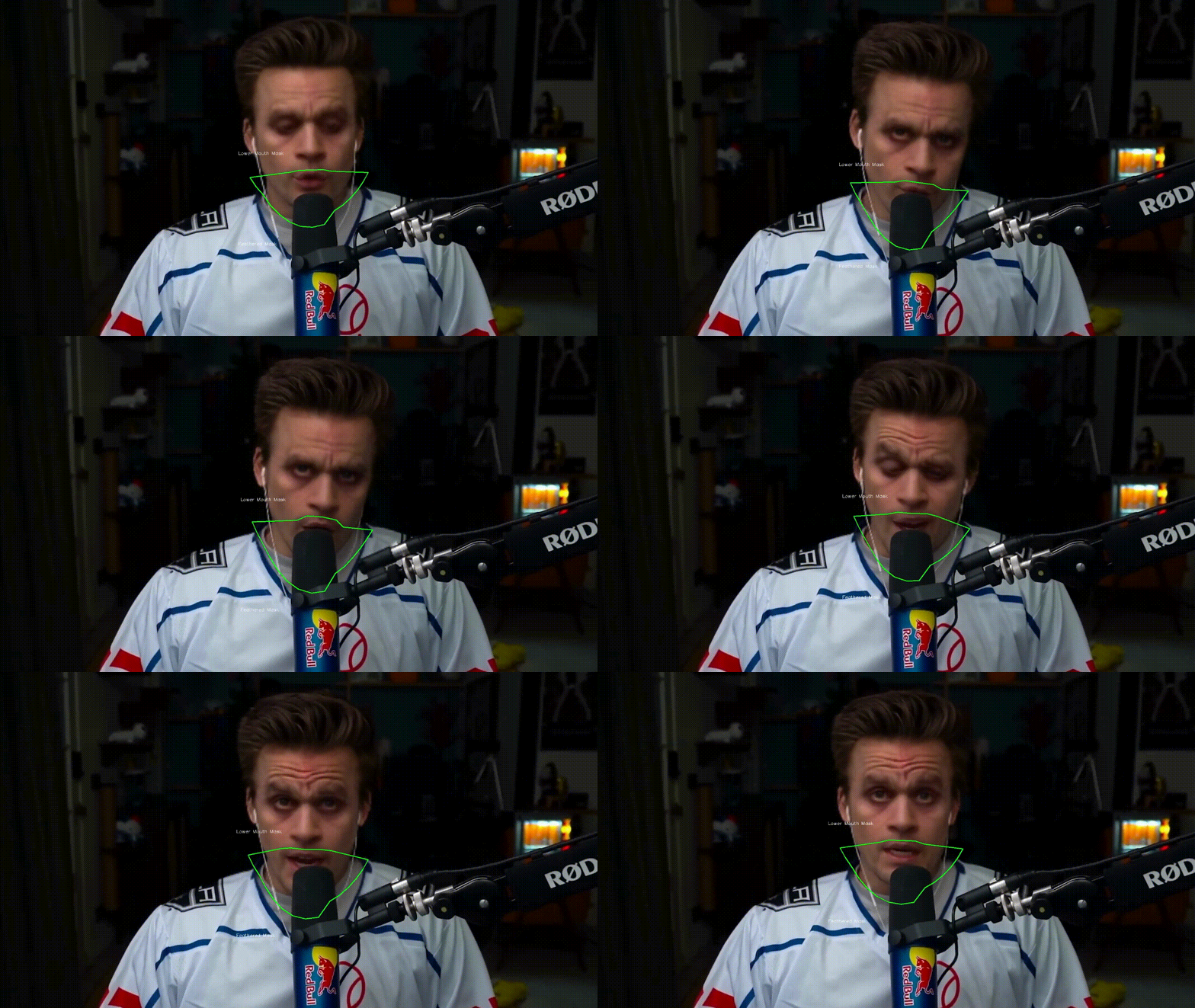
Mouth Mask
Retain your original mouth for accurate movement using Mouth Mask
Face Mapping
Use different faces on multiple subjects simultaneously

Your Movie, Your Face
Watch movies with any face in real-time

Live Show
Run Live shows and performances

Memes
Create Your Most Viral Meme Yet

Created using Many Faces feature in Deep-Live-Cam
Omegle
Surprise people on Omegle
Installation (Manual)
Please be aware that the installation requires technical skills and is not for beginners. Consider downloading the quickstart version.
Click to see the process
Installation
This is more likely to work on your computer but will be slower as it utilizes the CPU.
1. Set up Your Platform
- Python (3.11 recommended)
- pip
- git
- ffmpeg -
iex (irm ffmpeg.tc.ht) - Visual Studio 2022 Runtimes (Windows)
2. Clone the Repository
git clone https://github.com/hacksider/Deep-Live-Cam.git
cd Deep-Live-Cam
3. Download the Models
Place these files in the "models" folder.
4. Install Dependencies
We highly recommend using a venv to avoid issues.
For Windows:
python -m venv venv
venv\Scripts\activate
pip install -r requirements.txt
For Linux:
# Ensure you use the installed Python 3.10
python3 -m venv venv
source venv/bin/activate
pip install -r requirements.txt
For macOS:
Apple Silicon (M1/M2/M3) requires specific setup:
# Install Python 3.11 (specific version is important)
brew install [email protected]

# Install tkinter package (required for the GUI)
brew install [email protected]

# Create and activate virtual environment with Python 3.11
python3.11 -m venv venv
source venv/bin/activate

# Install dependencies
pip install -r requirements.txt
** In case something goes wrong and you need to reinstall the virtual environment **
# Deactivate the virtual environment
rm -rf venv

# Reinstall the virtual environment
python -m venv venv
source venv/bin/activate

# install the dependencies again
pip install -r requirements.txt

# gfpgan and basicsrs issue fix
pip install git+https://github.com/xinntao/BasicSR.git@master
pip uninstall gfpgan -y
pip install git+https://github.com/TencentARC/GFPGAN.git@master
Run: If you don't have a GPU, you can run Deep-Live-Cam using python run.py. Note that initial execution will download models (~300MB).
GPU Acceleration
CUDA Execution Provider (Nvidia)
- Install CUDA Toolkit 12.8.0
- Install cuDNN v8.9.7 for CUDA 12.x (required for onnxruntime-gpu):
- Download cuDNN v8.9.7 for CUDA 12.x
- Make sure the cuDNN bin directory is in your system PATH
- Install dependencies:
pip install -U torch torchvision torchaudio --index-url https://download.pytorch.org/whl/cu128
pip uninstall onnxruntime onnxruntime-gpu
pip install onnxruntime-gpu==1.21.0
- Usage:
python run.py --execution-provider cuda
CoreML Execution Provider (Apple Silicon)
Apple Silicon (M1/M2/M3) specific installation:
- Make sure you've completed the macOS setup above using Python 3.10.
- Install dependencies:
pip uninstall onnxruntime onnxruntime-silicon
pip install onnxruntime-silicon==1.13.1
- Usage (important: specify Python 3.10):
python3.10 run.py --execution-provider coreml
Important Notes for macOS:
- You must use Python 3.10, not newer versions like 3.11 or 3.13
- Always run with
python3.10command not justpythonif you have multiple Python versions installed - If you get error about
_tkintermissing, reinstall the tkinter package:brew reinstall [email protected] - If you get model loading errors, check that your models are in the correct folder
- If you encounter conflicts with other Python versions, consider uninstalling them:
# List all installed Python versions
brew list | grep python

# Uninstall conflicting versions if needed
brew uninstall --ignore-dependencies [email protected] [email protected]

# Keep only Python 3.11
brew cleanup
CoreML Execution Provider (Apple Legacy)
- Install dependencies:
pip uninstall onnxruntime onnxruntime-coreml
pip install onnxruntime-coreml==1.21.0
- Usage:
python run.py --execution-provider coreml
DirectML Execution Provider (Windows)
- Install dependencies:
pip uninstall onnxruntime onnxruntime-directml
pip install onnxruntime-directml==1.21.0
- Usage:
python run.py --execution-provider directml
OpenVINO™ Execution Provider (Intel)
- Install dependencies:
pip uninstall onnxruntime onnxruntime-openvino
pip install onnxruntime-openvino==1.21.0
- Usage:
python run.py --execution-provider openvino
Usage
1. Image/Video Mode
- Execute
python run.py. - Choose a source face image and a target image/video.
- Click "Start".
- The output will be saved in a directory named after the target video.
2. Webcam Mode
- Execute
python run.py. - Select a source face image.
- Click "Live".
- Wait for the preview to appear (10-30 seconds).
- Use a screen capture tool like OBS to stream.
- To change the face, select a new source image.
Command Line Arguments (Unmaintained)
options:
  -h, --help                                               show this help message and exit
  -s SOURCE_PATH, --source SOURCE_PATH                     select a source image
  -t TARGET_PATH, --target TARGET_PATH                     select a target image or video
  -o OUTPUT_PATH, --output OUTPUT_PATH                     select output file or directory
  --frame-processor FRAME_PROCESSOR [FRAME_PROCESSOR ...]  frame processors (choices: face_swapper, face_enhancer, ...)
  --keep-fps                                               keep original fps
  --keep-audio                                             keep original audio
  --keep-frames                                            keep temporary frames
  --many-faces                                             process every face
  --map-faces                                              map source target faces
  --mouth-mask                                             mask the mouth region
  --video-encoder {libx264,libx265,libvpx-vp9}             adjust output video encoder
  --video-quality [0-51]                                   adjust output video quality
  --live-mirror                                            the live camera display as you see it in the front-facing camera frame
  --live-resizable                                         the live camera frame is resizable
  --max-memory MAX_MEMORY                                  maximum amount of RAM in GB
  --execution-provider {cpu} [{cpu} ...]                   available execution provider (choices: cpu, ...)
  --execution-threads EXECUTION_THREADS                    number of execution threads
  -v, --version                                            show program's version number and exit
Looking for a CLI mode? Using the -s/--source argument will make the run program in cli mode.
Press
We are always open to criticism and are ready to improve, that's why we didn't cherry-pick anything.
- "Deep-Live-Cam goes viral, allowing anyone to become a digital doppelganger" - Ars Technica
- "Thanks Deep Live Cam, shapeshifters are among us now" - Dataconomy
- "This free AI tool lets you become anyone during video-calls" - NewsBytes
- "OK, this viral AI live stream software is truly terrifying" - Creative Bloq
- "Deepfake AI Tool Lets You Become Anyone in a Video Call With Single Photo" - PetaPixel
- "Deep-Live-Cam Uses AI to Transform Your Face in Real-Time, Celebrities Included" - TechEBlog
- "An AI tool that "makes you look like anyone" during a video call is going viral online" - Telegrafi
- "This Deepfake Tool Turning Images Into Livestreams is Topping the GitHub Charts" - Emerge
- "New Real-Time Face-Swapping AI Allows Anyone to Mimic Famous Faces" - Digital Music News
- "This real-time webcam deepfake tool raises alarms about the future of identity theft" - DIYPhotography
- "That's Crazy, Oh God. That's Fucking Freaky Dude... That's So Wild Dude" - SomeOrdinaryGamers
- "Alright look look look, now look chat, we can do any face we want to look like chat" - IShowSpeed
- "They do a pretty good job matching poses, expression and even the lighting" - TechLinked (LTT)
- "Als Sean Connery an der Redaktionskonferenz teilnahm" - Golem.de (German)
Credits
- ffmpeg: for making video-related operations easy
- deepinsight: for their insightface project which provided a well-made library and models. Please be reminded that the use of the model is for non-commercial research purposes only.
- havok2-htwo: for sharing the code for webcam
- GosuDRM: for the open version of roop
- pereiraroland26: Multiple faces support
- vic4key: For supporting/contributing to this project
- kier007: for improving the user experience
- qitianai: for multi-lingual support
- and all developers behind libraries used in this project.
- Footnote: Please be informed that the base author of the code is s0md3v
- All the wonderful users who helped make this project go viral by starring the repo ❤️
Contributions
Stars to the Moon 🚀
Discover Repositories
Search across tracked repositories by name or description