
Fosowl/agenticSeek
Fully Local Manus AI. No APIs, No $200 monthly bills. Enjoy an autonomous agent that thinks, browses the web, and code for the sole cost of electricity.
Build with Backblaze B2
SDKs, agent skills, IDE extensions, and reference pipelines from Backblaze Labs. All open source.
Loading star history...
Use Cases & Benefits
- Provides a fully local, autonomous AI assistant that can think, browse the web, write code, and plan tasks without relying on cloud services.
- Ensures complete privacy and zero cloud dependency by running all AI processes and data storage entirely on the user's hardware.
- Use for private, offline AI-assisted web browsing and information extraction without exposing data to external servers.
- Use for autonomous coding assistance including writing, debugging, and running code in multiple programming languages locally.
- Use for managing and executing complex multi-step projects or plans by delegating tasks to specialized AI agents on your device.
About agenticSeek
AgenticSeek: Private, Local Manus Alternative.

English | 中文 | 繁體中文 | Français | 日本語 | Português (Brasil) | Español
A 100% local alternative to Manus AI, this voice-enabled AI assistant autonomously browses the web, writes code, and plans tasks while keeping all data on your device. Tailored for local reasoning models, it runs entirely on your hardware, ensuring complete privacy and zero cloud dependency.





Why AgenticSeek ?
-
🔒 Fully Local & Private - Everything runs on your machine — no cloud, no data sharing. Your files, conversations, and searches stay private.
-
🌐 Smart Web Browsing - AgenticSeek can browse the internet by itself — search, read, extract info, fill web form — all hands-free.
-
💻 Autonomous Coding Assistant - Need code? It can write, debug, and run programs in Python, C, Go, Java, and more — all without supervision.
-
🧠 Smart Agent Selection - You ask, it figures out the best agent for the job automatically. Like having a team of experts ready to help.
-
📋 Plans & Executes Complex Tasks - From trip planning to complex projects — it can split big tasks into steps and get things done using multiple AI agents.
-
🎙️ Voice-Enabled - Clean, fast, futuristic voice and speech to text allowing you to talk to it like it's your personal AI from a sci-fi movie. (In progress)
Demo
Can you search for the agenticSeek project, learn what skills are required, then open the CV_candidates.zip and then tell me which match best the project
https://github.com/user-attachments/assets/b8ca60e9-7b3b-4533-840e-08f9ac426316
Disclaimer: This demo, including all the files that appear (e.g: CV_candidates.zip), are entirely fictional. We are not a corporation, we seek open-source contributors not candidates.
🛠⚠️️ Active Work in Progress
🙏 This project started as a side-project and has zero roadmap and zero funding. It's grown way beyond what I expected by ending in GitHub Trending. Contributions, feedback, and patience are deeply appreciated.
Prerequisites
Before you begin, ensure you have the following software installed:
- Git: For cloning the repository. Download Git
- Python 3.10.x: We strongly recommend using Python version 3.10.x. Using other versions might lead to dependency errors. Download Python 3.10 (pick a 3.10.x version).
- Docker Engine & Docker Compose: For running bundled services like SearxNG.
- Install Docker Desktop (which includes Docker Compose V2): Windows | Mac | Linux
- Alternatively, install Docker Engine and Docker Compose separately on Linux: Docker Engine | Docker Compose (ensure you install Compose V2, e.g.,
sudo apt-get install docker-compose-plugin).
1. Clone the repository and setup
git clone https://github.com/Fosowl/agenticSeek.git
cd agenticSeek
mv .env.example .env
2. Change the .env file content
SEARXNG_BASE_URL="http://127.0.0.1:8080"
REDIS_BASE_URL="redis://redis:6379/0"
WORK_DIR="/Users/mlg/Documents/workspace_for_ai"
OLLAMA_PORT="11434"
LM_STUDIO_PORT="1234"
CUSTOM_ADDITIONAL_LLM_PORT="11435"
OPENAI_API_KEY='optional'
DEEPSEEK_API_KEY='optional'
OPENROUTER_API_KEY='optional'
TOGETHER_API_KEY='optional'
GOOGLE_API_KEY='optional'
ANTHROPIC_API_KEY='optional'
Update the .env file with your own values as needed:
- SEARXNG_BASE_URL: Leave unchanged
- REDIS_BASE_URL: Leave unchanged
- WORK_DIR: Path to your working directory on your local machine. AgenticSeek will be able to read and interact with these files.
- OLLAMA_PORT: Port number for the Ollama service.
- LM_STUDIO_PORT: Port number for the LM Studio service.
- CUSTOM_ADDITIONAL_LLM_PORT: Port for any additional custom LLM service.
API Key are totally optional for user who choose to run LLM locally. Which is the primary purpose of this project. Leave empty if you have sufficient hardware
3. Start Docker
Make sure Docker is installed and running on your system. You can start Docker using the following commands:
-
On Linux/macOS:
Open a terminal and run:sudo systemctl start dockerOr launch Docker Desktop from your applications menu if installed.
-
On Windows:
Start Docker Desktop from the Start menu.
You can verify Docker is running by executing:
docker info
If you see information about your Docker installation, it is running correctly.
See the table of Local Providers below for a summary.
Next step: Run AgenticSeek locally
See the Troubleshooting section if you are having issues.
If your hardware can't run LLMs locally, see Setup to run with an API.
For detailed config.ini explanations, see Config Section.
Setup for running LLM locally on your machine
Hardware Requirements:
To run LLMs locally, you'll need sufficient hardware. At a minimum, a GPU capable of running Magistral, Qwen or Deepseek 14B is required. See the FAQ for detailed model/performance recommendations.
Setup your local provider
Start your local provider, for example with ollama:
ollama serve
See below for a list of local supported provider.
Update the config.ini
Change the config.ini file to set the provider_name to a supported provider and provider_model to a LLM supported by your provider. We recommend reasoning model such as Magistral or Deepseek.
See the FAQ at the end of the README for required hardware.
[MAIN]
is_local = True # Whenever you are running locally or with remote provider.
provider_name = ollama # or lm-studio, openai, etc..
provider_model = deepseek-r1:14b # choose a model that fit your hardware
provider_server_address = 127.0.0.1:11434
agent_name = Jarvis # name of your AI
recover_last_session = True # whenever to recover the previous session
save_session = True # whenever to remember the current session
speak = False # text to speech
listen = False # Speech to text, only for CLI, experimental
jarvis_personality = False # Whenever to use a more "Jarvis" like personality (experimental)
languages = en zh # The list of languages, Text to speech will default to the first language on the list
[BROWSER]
headless_browser = True # leave unchanged unless using CLI on host.
stealth_mode = True # Use undetected selenium to reduce browser detection
Warning:
-
The
config.inifile format does not support comments. Do not copy and paste the example configuration directly, as comments will cause errors. Instead, manually modify theconfig.inifile with your desired settings, excluding any comments. -
Do NOT set provider_name to
openaiif using LM-studio for running LLMs. Set it tolm-studio. -
Some provider (eg: lm-studio) require you to have
http://in front of the IP. For examplehttp://127.0.0.1:1234
List of local providers
| Provider | Local? | Description |
|---|---|---|
| ollama | Yes | Run LLMs locally with ease using ollama as a LLM provider |
| lm-studio | Yes | Run LLM locally with LM studio (set provider_name to lm-studio) |
| openai | Yes | Use openai compatible API (eg: llama.cpp server) |
Next step: Start services and run AgenticSeek
See the Troubleshooting section if you are having issues.
If your hardware can't run LLMs locally, see Setup to run with an API.
For detailed config.ini explanations, see Config Section.
Setup to run with an API
This setup uses external, cloud-based LLM providers. You'll need an API key from your chosen service.
1. Choose an API Provider and Get an API Key:
Refer to the List of API Providers below. Visit their websites to sign up and obtain an API key.
2. Set Your API Key as an Environment Variable:
-
Linux/macOS: Open your terminal and use the
exportcommand. It's best to add this to your shell's profile file (e.g.,~/.bashrc,~/.zshrc) for persistence.export PROVIDER_API_KEY="your_api_key_here" # Replace PROVIDER_API_KEY with the specific variable name, e.g., OPENAI_API_KEY, GOOGLE_API_KEYExample for TogetherAI:
export TOGETHER_API_KEY="xxxxxxxxxxxxxxxxxxxxxx" -
Windows:
- Command Prompt (Temporary for current session):
set PROVIDER_API_KEY=your_api_key_here - PowerShell (Temporary for current session):
$env:PROVIDER_API_KEY="your_api_key_here" - Permanently: Search for "environment variables" in the Windows search bar, click "Edit the system environment variables," then click the "Environment Variables..." button. Add a new User variable with the appropriate name (e.g.,
OPENAI_API_KEY) and your key as the value.
(See FAQ: How do I set API keys? for more details).
- Command Prompt (Temporary for current session):
3. Update config.ini:
[MAIN]
is_local = False
provider_name = openai # Or google, deepseek, togetherAI, huggingface
provider_model = gpt-3.5-turbo # Or gemini-1.5-flash, deepseek-chat, mistralai/Mixtral-8x7B-Instruct-v0.1 etc.
provider_server_address = # Typically ignored or can be left blank when is_local = False for most APIs
# ... other settings ...
Warning: Make sure there are no trailing spaces in the config.ini values.
List of API Providers
| Provider | provider_name | Local? | Description | API Key Link (Examples) |
|---|---|---|---|---|
| OpenAI | openai | No | Use ChatGPT models via OpenAI's API. | platform.openai.com/signup |
| Google Gemini | google | No | Use Google Gemini models via Google AI Studio. | aistudio.google.com/keys |
| Deepseek | deepseek | No | Use Deepseek models via their API. | platform.deepseek.com |
| Hugging Face | huggingface | No | Use models from Hugging Face Inference API. | huggingface.co/settings/tokens |
| TogetherAI | togetherAI | No | Use various open-source models via TogetherAI API. | api.together.ai/settings/api-keys |
Note:
- We advise against using
gpt-4oor other OpenAI models for complex web browsing and task planning as current prompt optimizations are geared towards models like Deepseek. - Coding/bash tasks might encounter issues with Gemini, as it may not strictly follow formatting prompts optimized for Deepseek.
- The
provider_server_addressinconfig.iniis generally not used whenis_local = Falseas the API endpoint is usually hardcoded in the respective provider's library.
Next step: Start services and run AgenticSeek
See the Known issues section if you are having issues
See the Config section for detailed config file explanation.
Start services and Run
By default AgenticSeek is run fully in docker.
Option 1: Run in Docker, use web interface:
Start required services. This will start all services from the docker-compose.yml, including:
- searxng
- redis (required by searxng)
- frontend
- backend (if using full when using the web interface)
./start_services.sh full # MacOS
start start_services.cmd full # Window
Warning: This step will download and load all Docker images, which may take up to 30 minutes. After starting the services, please wait until the backend service is fully running (you should see backend: "GET /health HTTP/1.1" 200 OK in the log) before sending any messages. The backend services might take 5 minute to start on first run.
Go to http://localhost:3000/ and you should see the web interface.
Troubleshooting service start: If these scripts fail, ensure Docker Engine is running and Docker Compose (V2, docker compose) is correctly installed. Check the output in the terminal for error messages. See FAQ: Help! I get an error when running AgenticSeek or its scripts.
Option 2: CLI mode:
To run with CLI interface you would have to install package on host:
./install.sh
./install.bat # windows
Start required services. This will start some services from the docker-compose.yml, including: - searxng - redis (required by searxng) - frontend
./start_services.sh # MacOS
start start_services.cmd # Window
Use the CLI: uv run cli.py
Usage
Make sure the services are up and running with ./start_services.sh full and go to localhost:3000 for web interface.
You can also use speech to text by setting listen = True in the config. Only for CLI mode.
To exit, simply say/type goodbye.
Here are some example usage:
Make a snake game in python!
Search the web for top cafes in Rennes, France, and save a list of three with their addresses in rennes_cafes.txt.
Write a Go program to calculate the factorial of a number, save it as factorial.go in your workspace
Search my summer_pictures folder for all JPG files, rename them with today’s date, and save a list of renamed files in photos_list.txt
Search online for popular sci-fi movies from 2024 and pick three to watch tonight. Save the list in movie_night.txt.
Search the web for the latest AI news articles from 2025, select three, and write a Python script to scrape their titles and summaries. Save the script as news_scraper.py and the summaries in ai_news.txt in /home/projects
Friday, search the web for a free stock price API, register with [email protected] then write a Python script to fetch using the API daily prices for Tesla, and save the results in stock_prices.csv
Note that form filling capabilities are still experimental and might fail.
After you type your query, AgenticSeek will allocate the best agent for the task.
Because this is an early prototype, the agent routing system might not always allocate the right agent based on your query.
Therefore, you should be very explicit in what you want and how the AI might proceed for example if you want it to conduct a web search, do not say:
Do you know some good countries for solo-travel?
Instead, ask:
Do a web search and find out which are the best country for solo-travel
Setup to run the LLM on your own server
If you have a powerful computer or a server that you can use, but you want to use it from your laptop you have the options to run the LLM on a remote server using our custom llm server.
On your "server" that will run the AI model, get the ip address
ip a | grep "inet " | grep -v 127.0.0.1 | awk '{print $2}' | cut -d/ -f1 # local ip
curl https://ipinfo.io/ip # public ip
Note: For Windows or macOS, use ipconfig or ifconfig respectively to find the IP address.
Clone the repository and enter the server/folder.
git clone --depth 1 https://github.com/Fosowl/agenticSeek.git
cd agenticSeek/llm_server/
Install server specific requirements:
pip3 install -r requirements.txt
Run the server script.
python3 app.py --provider ollama --port 3333
You have the choice between using ollama and llamacpp as a LLM service.
Now on your personal computer:
Change the config.ini file to set the provider_name to server and provider_model to deepseek-r1:xxb.
Set the provider_server_address to the ip address of the machine that will run the model.
[MAIN]
is_local = False
provider_name = server
provider_model = deepseek-r1:70b
provider_server_address = http://x.x.x.x:3333
Next step: Start services and run AgenticSeek
Speech to Text
Warning: speech to text only work in CLI mode at the moment.
Please note that currently speech to text only work in english.
The speech-to-text functionality is disabled by default. To enable it, set the listen option to True in the config.ini file:
listen = True
When enabled, the speech-to-text feature listens for a trigger keyword, which is the agent's name, before it begins processing your input. You can customize the agent's name by updating the agent_name value in the config.ini file:
agent_name = Friday
For optimal recognition, we recommend using a common English name like "John" or "Emma" as the agent name
Once you see the transcript start to appear, say the agent's name aloud to wake it up (e.g., "Friday").
Speak your query clearly.
End your request with a confirmation phrase to signal the system to proceed. Examples of confirmation phrases include:
"do it", "go ahead", "execute", "run", "start", "thanks", "would ya", "please", "okay?", "proceed", "continue", "go on", "do that", "go it", "do you understand?"
Config
Example config:
[MAIN]
is_local = True
provider_name = ollama
provider_model = deepseek-r1:32b
provider_server_address = http://127.0.0.1:11434 # Example for Ollama; use http://127.0.0.1:1234 for LM-Studio
agent_name = Friday
recover_last_session = False
save_session = False
speak = False
listen = False

jarvis_personality = False
languages = en zh # List of languages for TTS and potentially routing.
[BROWSER]
headless_browser = False
stealth_mode = False
Explanation of config.ini Settings:
[MAIN]Section:is_local:Trueif using a local LLM provider (Ollama, LM-Studio, local OpenAI-compatible server) or the self-hosted server option.Falseif using a cloud-based API (OpenAI, Google, etc.).provider_name: Specifies the LLM provider.- Local options:
ollama,lm-studio,openai(for local OpenAI-compatible servers),server(for the self-hosted server setup). - API options:
openai,google,deepseek,huggingface,togetherAI.
- Local options:
provider_model: The specific model name or ID for the chosen provider (e.g.,deepseekcoder:6.7bfor Ollama,gpt-3.5-turbofor OpenAI API,mistralai/Mixtral-8x7B-Instruct-v0.1for TogetherAI).provider_server_address: The address of your LLM provider.- For local providers: e.g.,
http://127.0.0.1:11434for Ollama,http://127.0.0.1:1234for LM-Studio. - For the
serverprovider type: The address of your self-hosted LLM server (e.g.,http://your_server_ip:3333). - For cloud APIs (
is_local = False): This is often ignored or can be left blank, as the API endpoint is usually handled by the client library.
- For local providers: e.g.,
agent_name: Name of the AI assistant (e.g., Friday). Used as a trigger word for speech-to-text if enabled.recover_last_session:Trueto attempt to restore the previous session's state,Falseto start fresh.save_session:Trueto save the current session's state for potential recovery,Falseotherwise.speak:Trueto enable text-to-speech voice output,Falseto disable.listen:Trueto enable speech-to-text voice input (CLI mode only),Falseto disable.work_dir: Crucial: The directory where AgenticSeek will read/write files. Ensure this path is valid and accessible on your system.jarvis_personality:Trueto use a more "Jarvis-like" system prompt (experimental),Falsefor the standard prompt.languages: A comma-separated list of languages (e.g.,en, zh, fr). Used for TTS voice selection (defaults to the first) and can assist the LLM router. Avoid too many or very similar languages for router efficiency.
[BROWSER]Section:headless_browser:Trueto run the automated browser without a visible window (recommended for web interface or non-interactive use).Falseto show the browser window (useful for CLI mode or debugging).stealth_mode:Trueto enable measures to make browser automation harder to detect. May require manual installation of browser extensions like anticaptcha.
This section summarizes the supported LLM provider types. Configure them in config.ini.
Local Providers (Run on Your Own Hardware):
Provider Name in config.ini | is_local | Description | Setup Section |
|---|---|---|---|
ollama | True | Use Ollama to serve local LLMs. | Setup for running LLM locally |
lm-studio | True | Use LM-Studio to serve local LLMs. | Setup for running LLM locally |
openai (for local server) | True | Connect to a local server that exposes an OpenAI-compatible API (e.g., llama.cpp). | Setup for running LLM locally |
server | False | Connect to the AgenticSeek self-hosted LLM server running on another machine. | Setup to run the LLM on your own server |
API Providers (Cloud-Based):
Provider Name in config.ini | is_local | Description | Setup Section |
|---|---|---|---|
openai | False | Use OpenAI's official API (e.g., GPT-3.5, GPT-4). | Setup to run with an API |
google | False | Use Google's Gemini models via API. | Setup to run with an API |
deepseek | False | Use Deepseek's official API. | Setup to run with an API |
huggingface | False | Use Hugging Face Inference API. | Setup to run with an API |
togetherAI | False | Use TogetherAI's API for various open models. | Setup to run with an API |
Troubleshooting
If you encounter issues, this section provides guidance.
Known Issues
ChromeDriver Issues
Error Example: SessionNotCreatedException: Message: session not created: This version of ChromeDriver only supports Chrome version XXX
Root Cause
ChromeDriver version incompatibility occurs when:
- Your installed ChromeDriver version doesn't match your Chrome browser version
- In Docker environments,
undetected_chromedrivermay download its own ChromeDriver version, bypassing the mounted binary
Solution Steps
1. Check Your Chrome Version
Open Google Chrome → Settings > About Chrome to find your version (e.g., "Version 134.0.6998.88")
2. Download Matching ChromeDriver
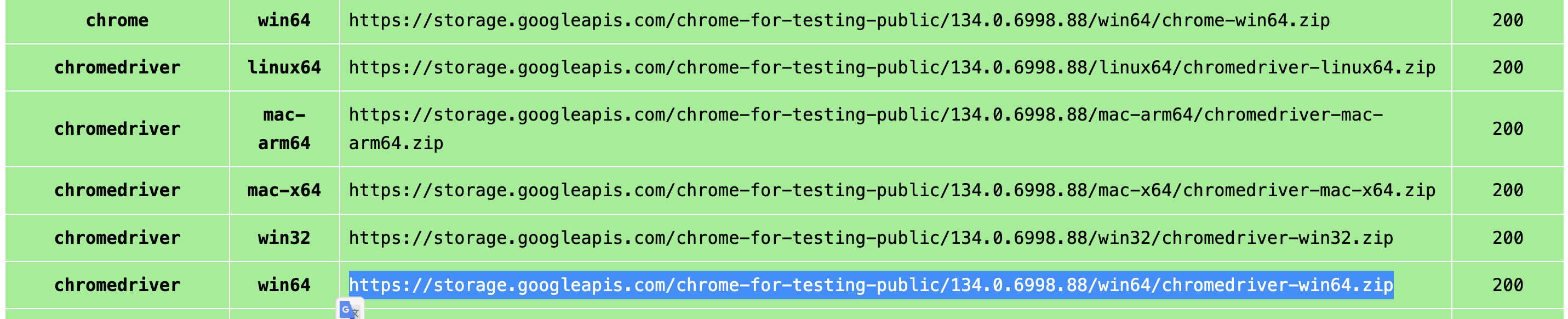
For Chrome 115 and newer: Use the Chrome for Testing API
- Visit the Chrome for Testing availability dashboard
- Find your Chrome version or the closest available match
- Download the ChromeDriver for your OS (Linux64 for Docker environments)
For older Chrome versions: Use the legacy ChromeDriver downloads
3. Install ChromeDriver (Choose One Method)
Method A: Project Root Directory (Recommended for Docker)
# Place the downloaded chromedriver binary in your project root
cp path/to/downloaded/chromedriver ./chromedriver
chmod +x ./chromedriver  # Make executable on Linux/macOS
Method B: System PATH
# Linux/macOS
sudo mv chromedriver /usr/local/bin/
sudo chmod +x /usr/local/bin/chromedriver

# Windows: Place chromedriver.exe in a folder that's in your PATH
4. Verify Installation
# Test the ChromeDriver version
./chromedriver --version
# OR if in PATH:
chromedriver --version
Docker-Specific Notes
⚠️ Important for Docker Users:
- The Docker volume mount approach may not work with stealth mode (
undetected_chromedriver) - Solution: Place ChromeDriver in the project root directory as
./chromedriver - The application will automatically detect and use this binary
- You should see:
"Using ChromeDriver from project root: ./chromedriver"in the logs
Troubleshooting Tips
-
Still getting version mismatch?
- Verify the ChromeDriver is executable:
ls -la ./chromedriver - Check the ChromeDriver version:
./chromedriver --version - Ensure it matches your Chrome browser version
- Verify the ChromeDriver is executable:
-
Docker container issues?
- Check backend logs:
docker logs backend - Look for the message:
"Using ChromeDriver from project root" - If not found, verify the file exists and is executable
- Check backend logs:
-
Chrome for Testing versions
- Use the exact version match when possible
- For version 134.0.6998.88, use ChromeDriver 134.0.6998.165 (closest available)
- Major version numbers must match (134 = 134)
Version Compatibility Matrix
| Chrome Version | ChromeDriver Version | Status |
|---|---|---|
| 134.0.6998.x | 134.0.6998.165 | ✅ Works |
| 133.0.6943.x | 133.0.6943.141 | ✅ Works |
| 132.0.6834.x | 132.0.6834.159 | ✅ Works |
For the latest compatibility, check the Chrome for Testing dashboard
Exception: Failed to initialize browser: Message: session not created: This version of ChromeDriver only supports Chrome version 113 Current browser version is 134.0.6998.89 with binary path
This happen if there is a mismatch between your browser and chromedriver version.
You need to navigate to download the latest version:
https://developer.chrome.com/docs/chromedriver/downloads
If you're using Chrome version 115 or newer go to:
https://googlechromelabs.github.io/chrome-for-testing/
And download the chromedriver version matching your OS.
If this section is incomplete please raise an issue.
connection adapters Issues
Exception: Provider lm-studio failed: HTTP request failed: No connection adapters were found for '127.0.0.1:1234/v1/chat/completions'` (Note: port may vary)
- Cause: The
provider_server_addressinconfig.iniforlm-studio(or other similar local OpenAI-compatible servers) is missing thehttp://prefix or is pointing to the wrong port. - Solution:
- Ensure the address includes
http://. LM-Studio typically defaults tohttp://127.0.0.1:1234. - Correct
config.ini:provider_server_address = http://127.0.0.1:1234(or your actual LM-Studio server port).
- Ensure the address includes
SearxNG Base URL Not Provided
raise ValueError("SearxNG base URL must be provided either as an argument or via the SEARXNG_BASE_URL environment variable.")
ValueError: SearxNG base URL must be provided either as an argument or via the SEARXNG_BASE_URL environment variable.`
FAQ
Q: What hardware do I need?
| Model Size | GPU | Comment |
|---|---|---|
| 7B | 8GB Vram | ⚠️ Not recommended. Performance is poor, frequent hallucinations, and planner agents will likely fail. |
| 14B | 12 GB VRAM (e.g. RTX 3060) | ✅ Usable for simple tasks. May struggle with web browsing and planning tasks. |
| 32B | 24+ GB VRAM (e.g. RTX 4090) | 🚀 Success with most tasks, might still struggle with task planning |
| 70B+ | 48+ GB Vram | 💪 Excellent. Recommended for advanced use cases. |
Q: I get an error what do I do?
Ensure local is running (ollama serve), your config.ini matches your provider, and dependencies are installed. If none work feel free to raise an issue.
Q: Can it really run 100% locally?
Yes with Ollama, lm-studio or server providers, all speech to text, LLM and text to speech model run locally. Non-local options (OpenAI or others API) are optional.
Q: Why should I use AgenticSeek when I have Manus?
Unlike Manus, AgenticSeek prioritizes independence from external systems, giving you more control, privacy and avoid api cost.
Q: Who is behind the project ?
The project was created by me, along with two friends who serve as maintainers and contributors from the open-source community on GitHub. We’re just a group of passionate individuals, not a startup or affiliated with any organization.
Any AgenticSeek account on X other than my personal account (https://x.com/Martin993886460) is an impersonation.
Contribute
We’re looking for developers to improve AgenticSeek! Check out open issues or discussion.
Sponsors:
Want to level up AgenticSeek capabilities with features like flight search, trip planning, or snagging the best shopping deals? Consider crafting a custom tool with SerpApi to unlock more Jarvis-like capabilities. With SerpApi, you can turbocharge your agent for specialized tasks while staying in full control.
See Contributing.md to learn how to integrate custom tools!
Patron sponsor:
Maintainers:
Fosowl | Paris Time
antoineVIVIES | Taipei Time
Special Thanks:
Discover Repositories
Search across tracked repositories by name or description